

PrintDeck features
See what your printer is doing, make the display your own and take it with you around the workshop.
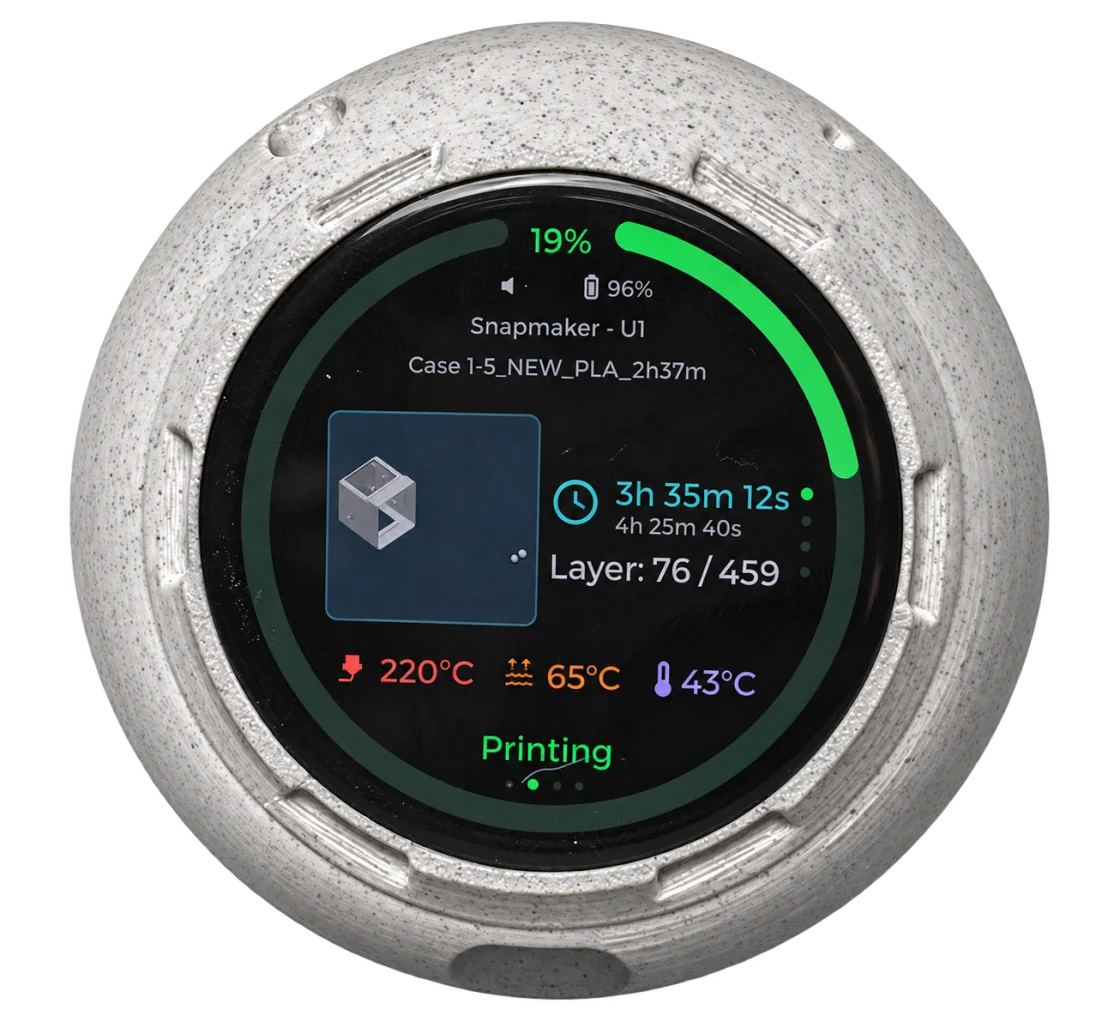
Print monitoring
-
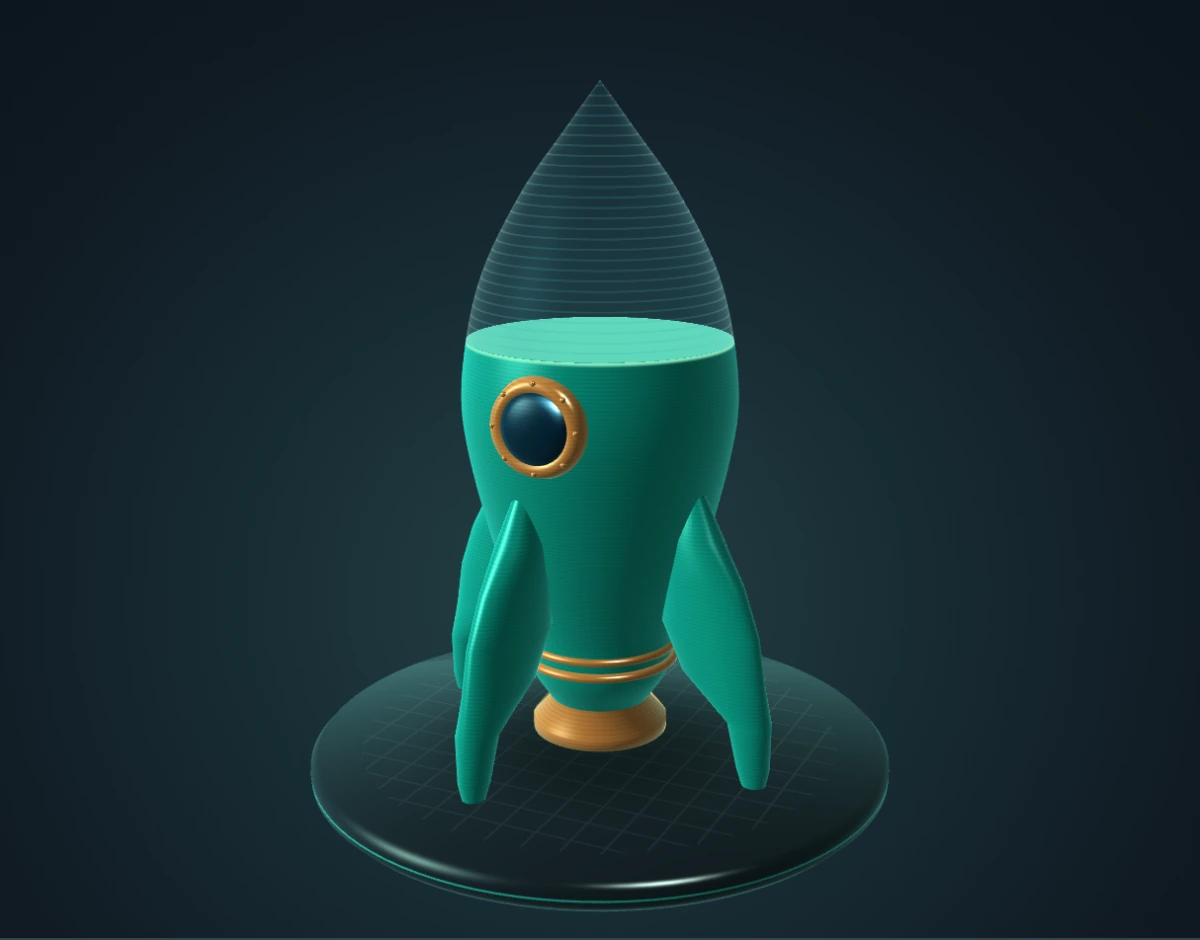
Live 3D view for resin printers
Rotate a resin print and move through its layers to see what has already formed.
-
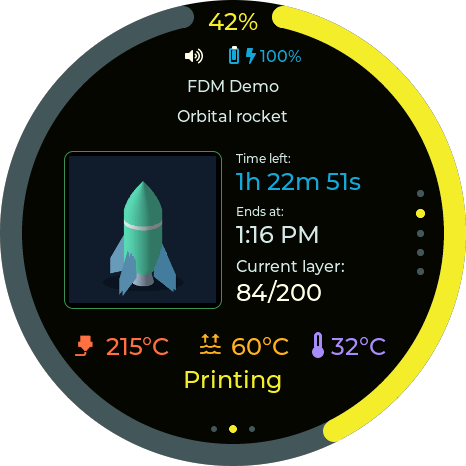
Automatic switch to the printer status screen
When a print starts, its dashboard can open on its own. That is especially handy on a Panda KNOMI, which has no touch input.
-
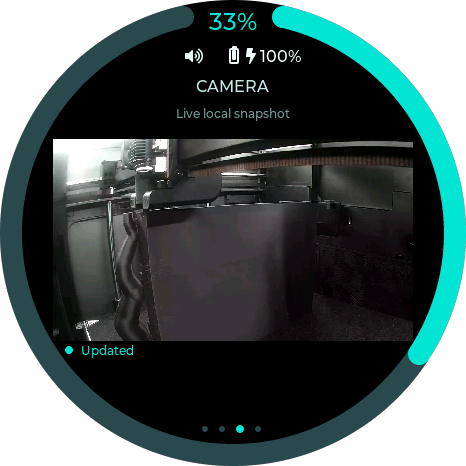
Local camera view
Look inside the printer from your PrintDeck display while the job is running.
-
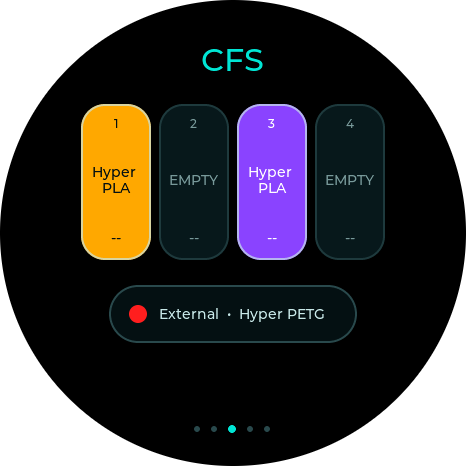
Filament systems
Check which material and colour are in each slot before you walk over to the printer.
-
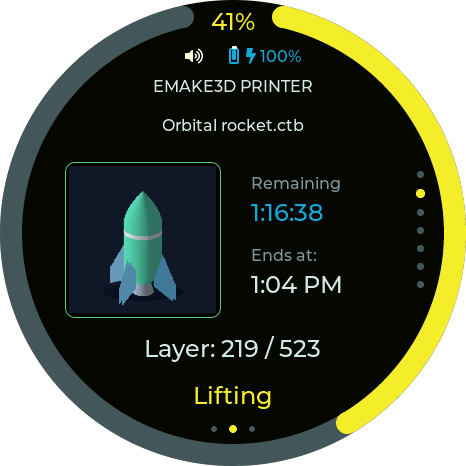
Resin printer monitoring
Follow the current layer, exposure and remaining print time from your desk.
-
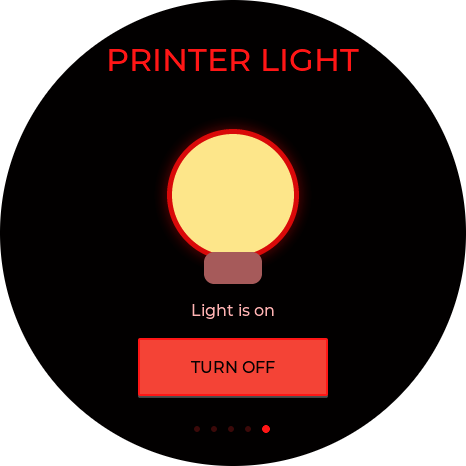
Printer controls
Monitor by default and choose whether to enable the controls your printer supports.
Access & connections
-
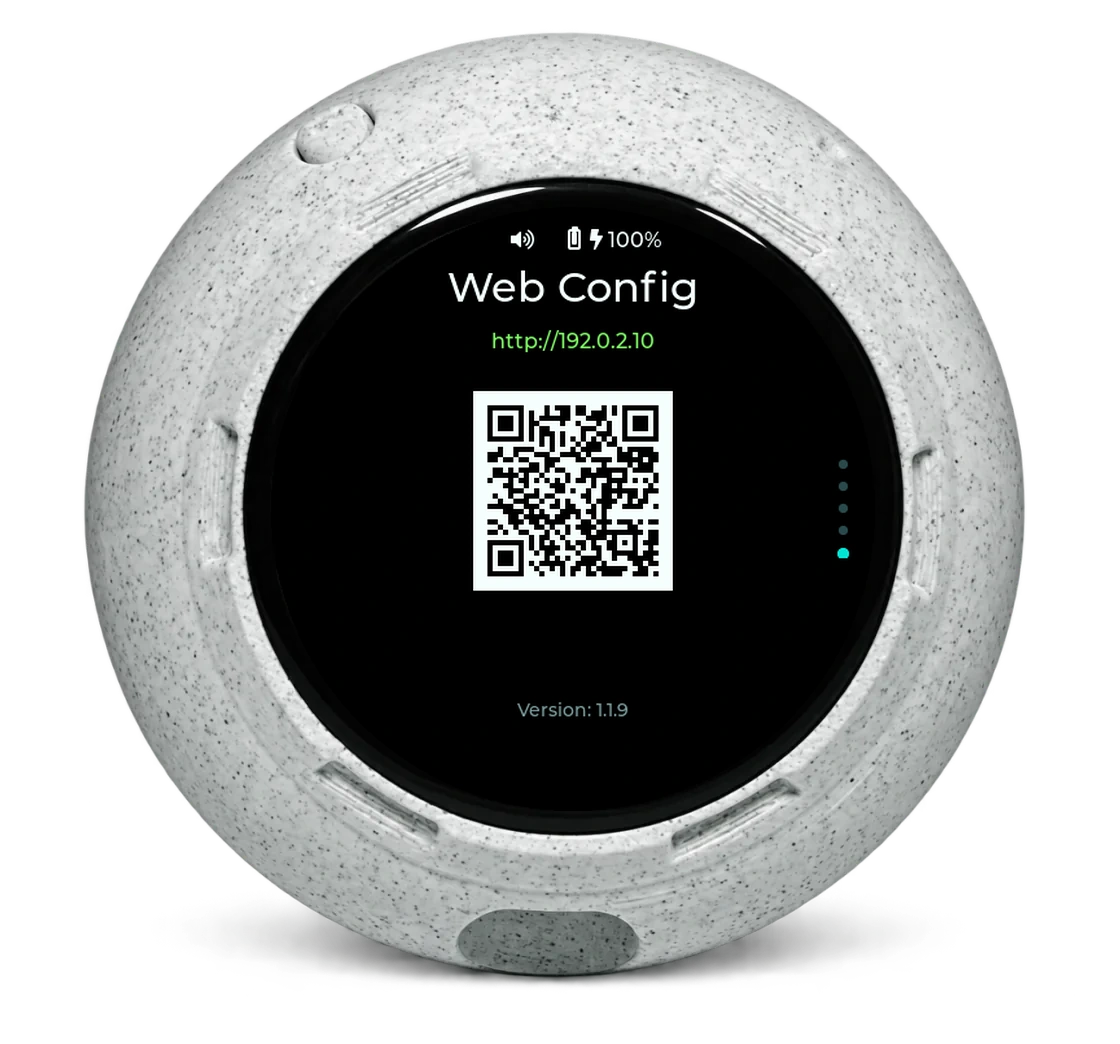
Web Config
Scan the code on your PrintDeck to open its settings on your phone.
-
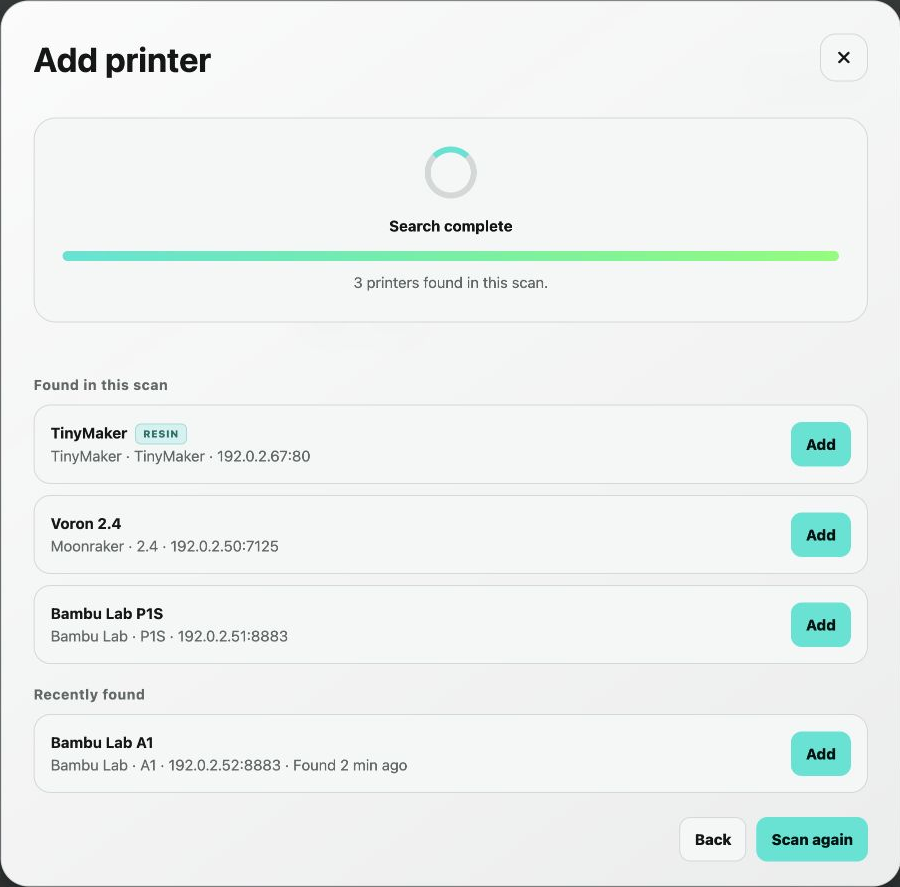
LAN printer scanner
Find compatible printers on your Wi-Fi network without looking up each address.
-
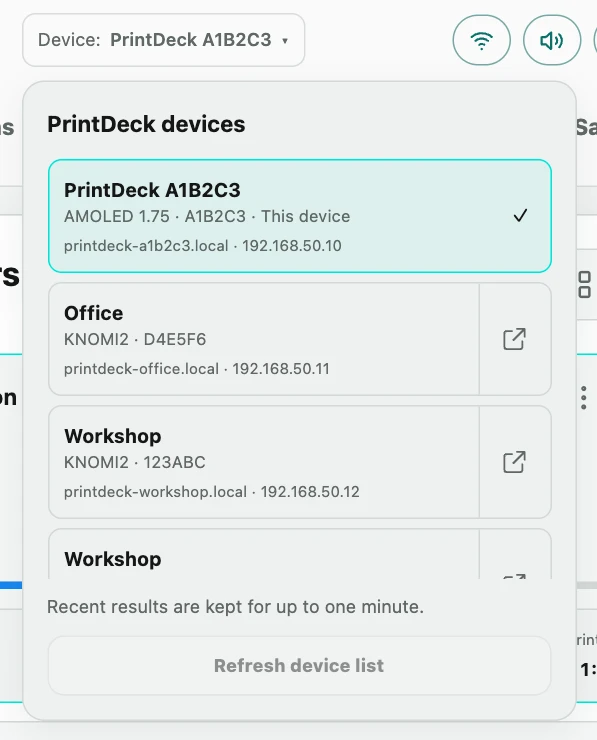
Switch between PrintDeck devices
Open another PrintDeck on the same Wi-Fi from the top of Web Config.
-
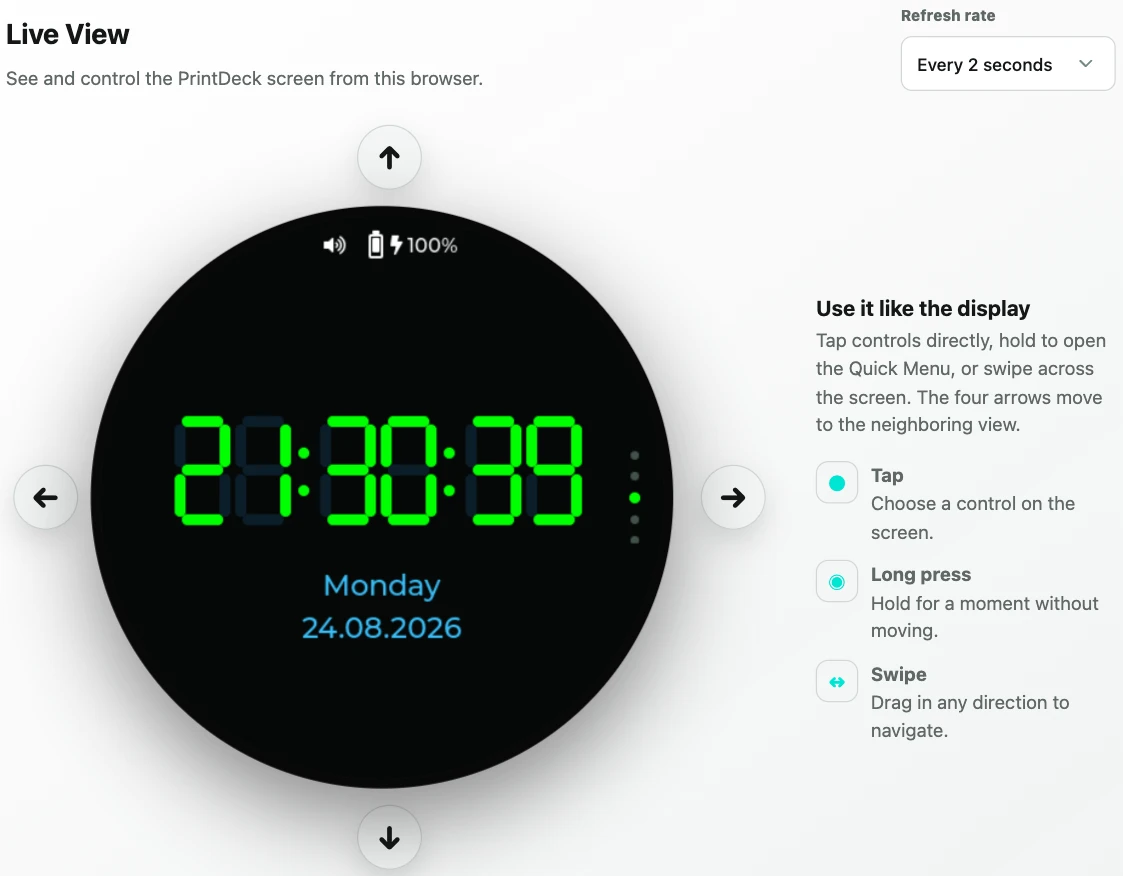
Device Live View
See the PrintDeck screen in your browser and navigate it with a tap, hold or swipe.
-
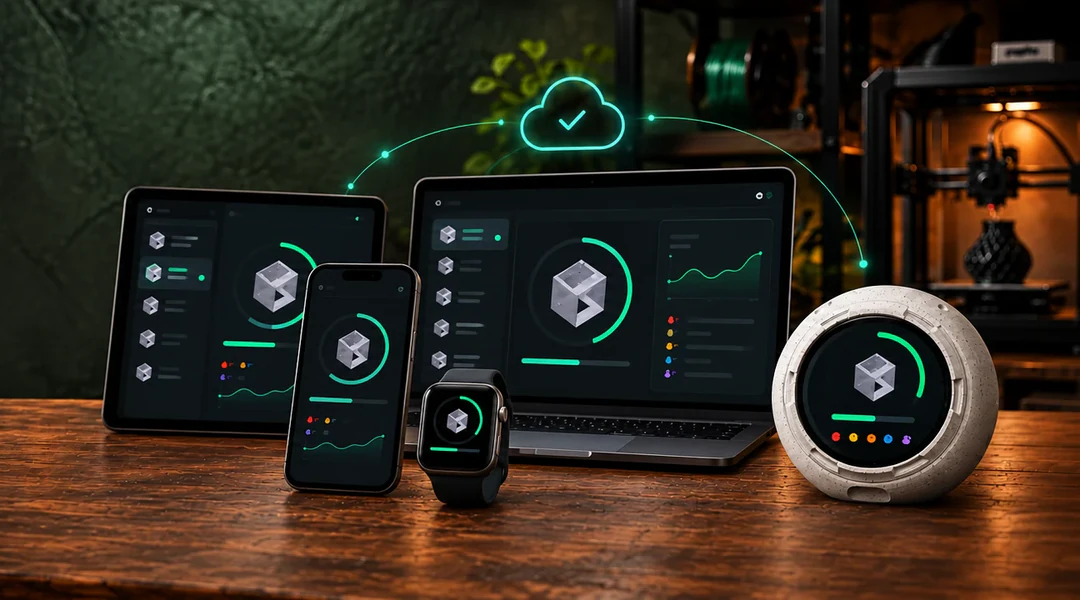
PrintDeck Cloud and apps
Check how much time is left on a print when you’re away from the workshop.
-
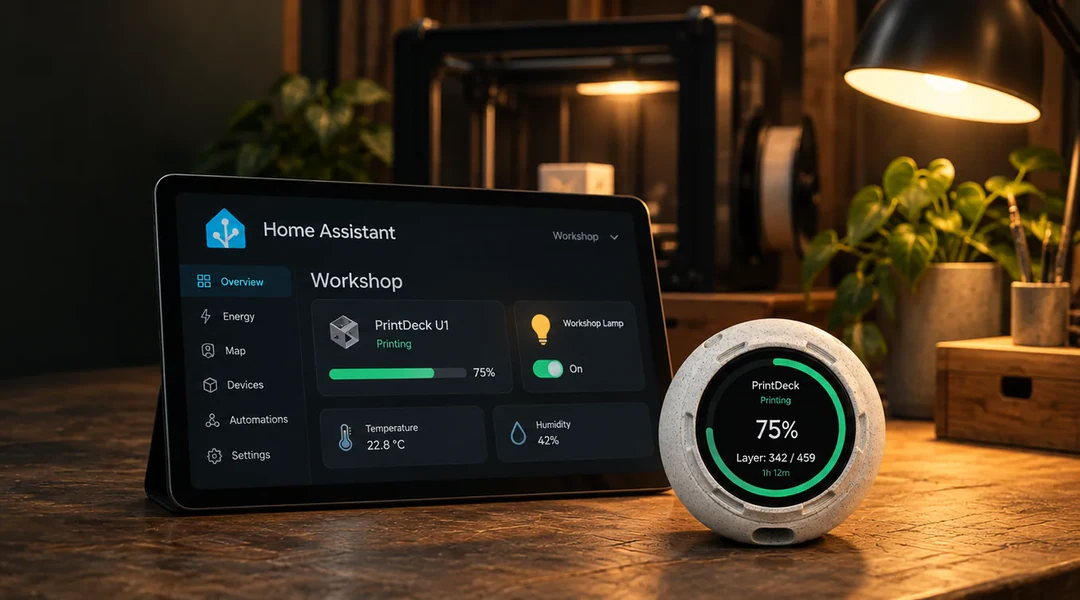
PrintDeck in Home Assistant
Turn on a workshop light when a job finishes, or put progress and temperatures on your home dashboard.
Display & sound
-
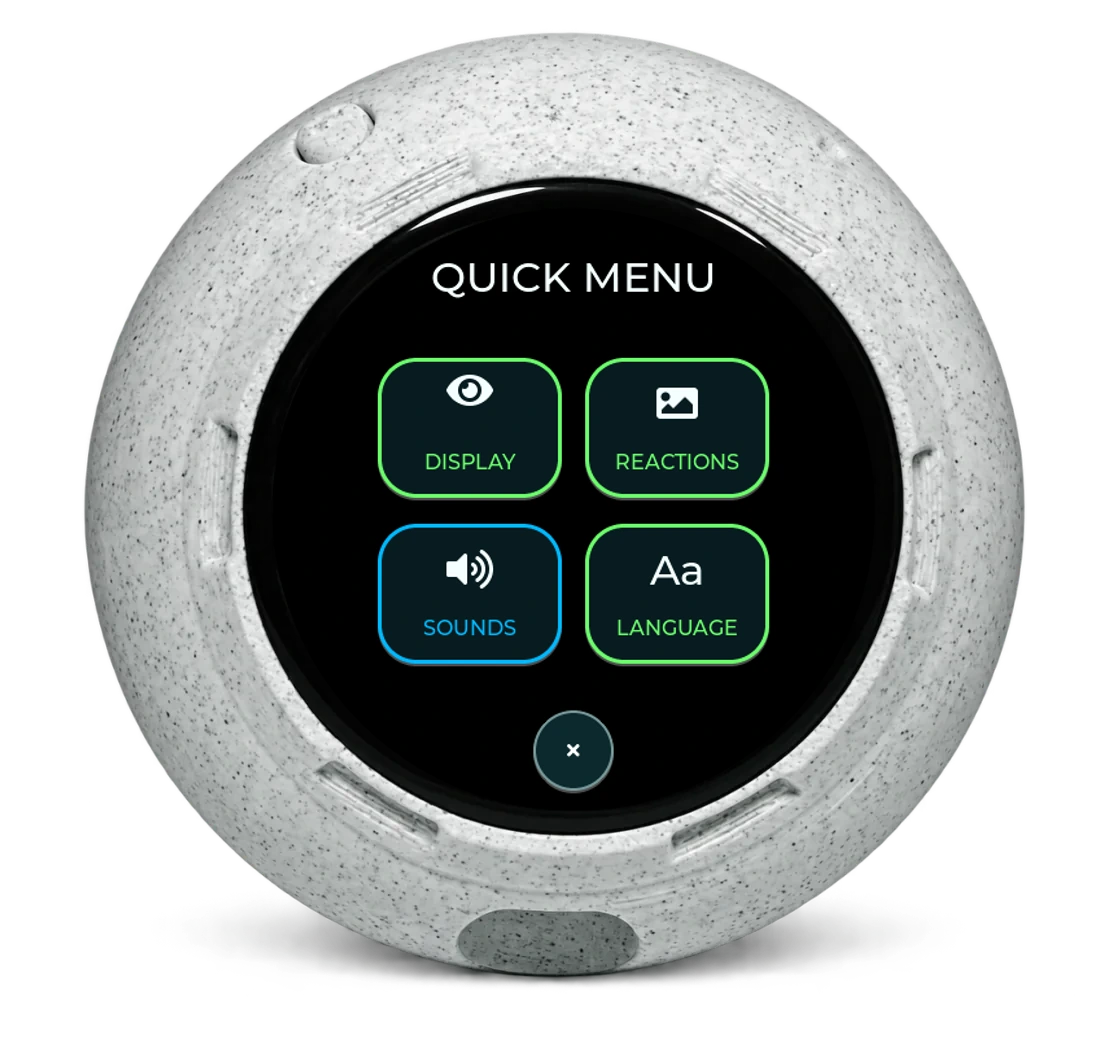
Long-press menu
Touch and hold a regular screen without swiping to open the Quick Menu. Adjust your display or change what you hear and see when a print finishes.
-

Printer reactions
Give heating, printing and the moment a job finishes their own animations on your display.
-
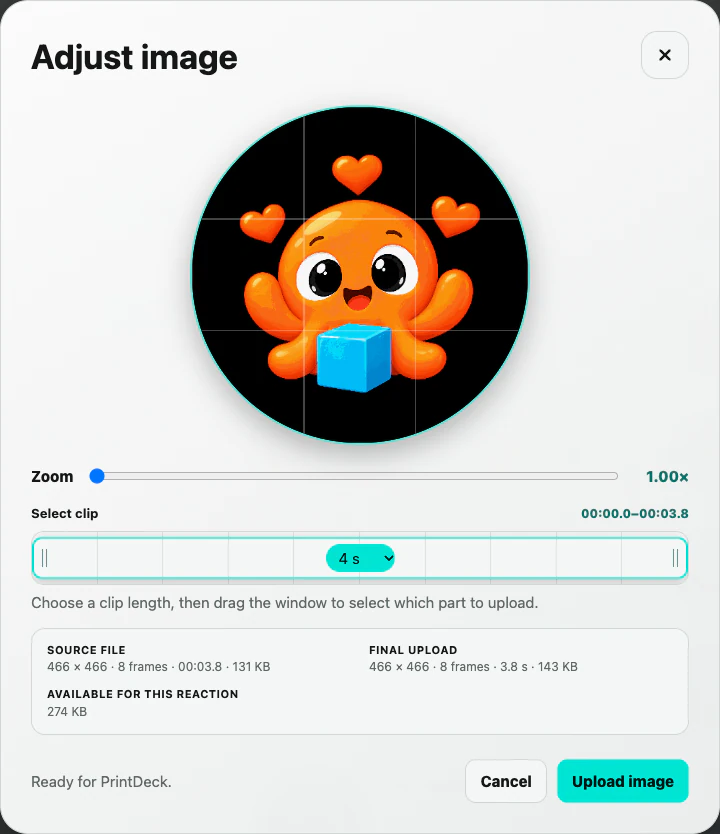
Custom GIF reactions
Put your own animation or photo on the display when a particular printer event happens.
-
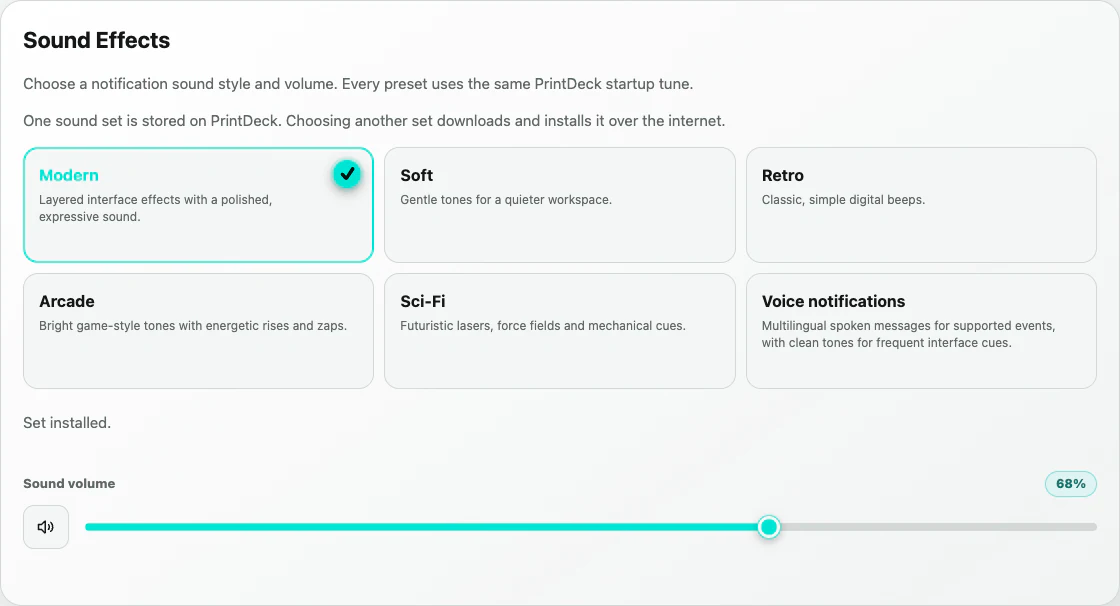
Notification sounds
Hear when a print finishes with a short tone or a spoken message in your language.
-
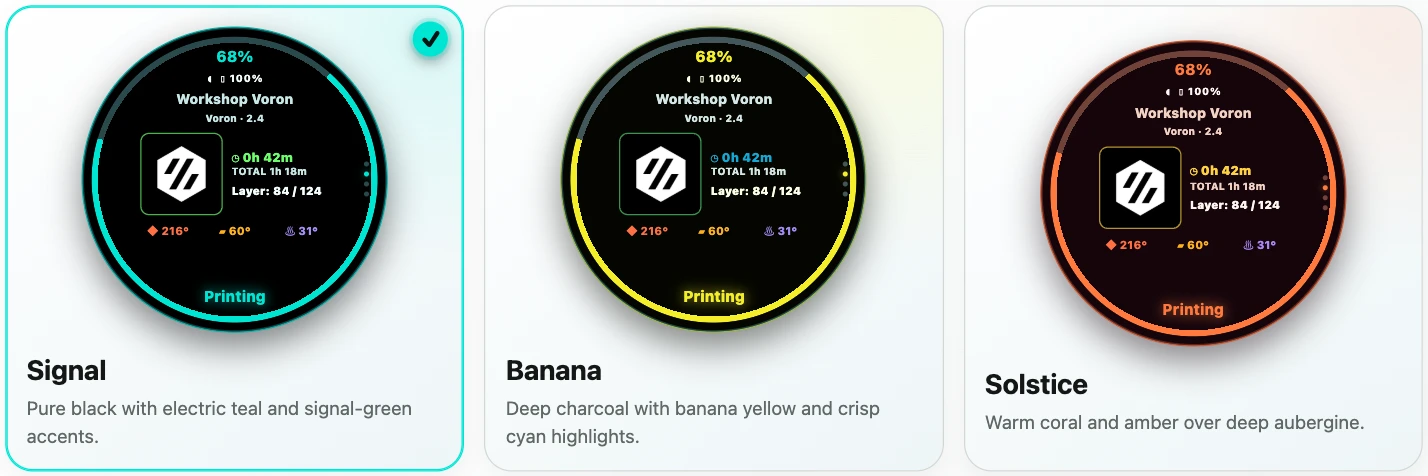
Display themes
Preview a colour palette on a sample printer screen before applying it to your PrintDeck.
-
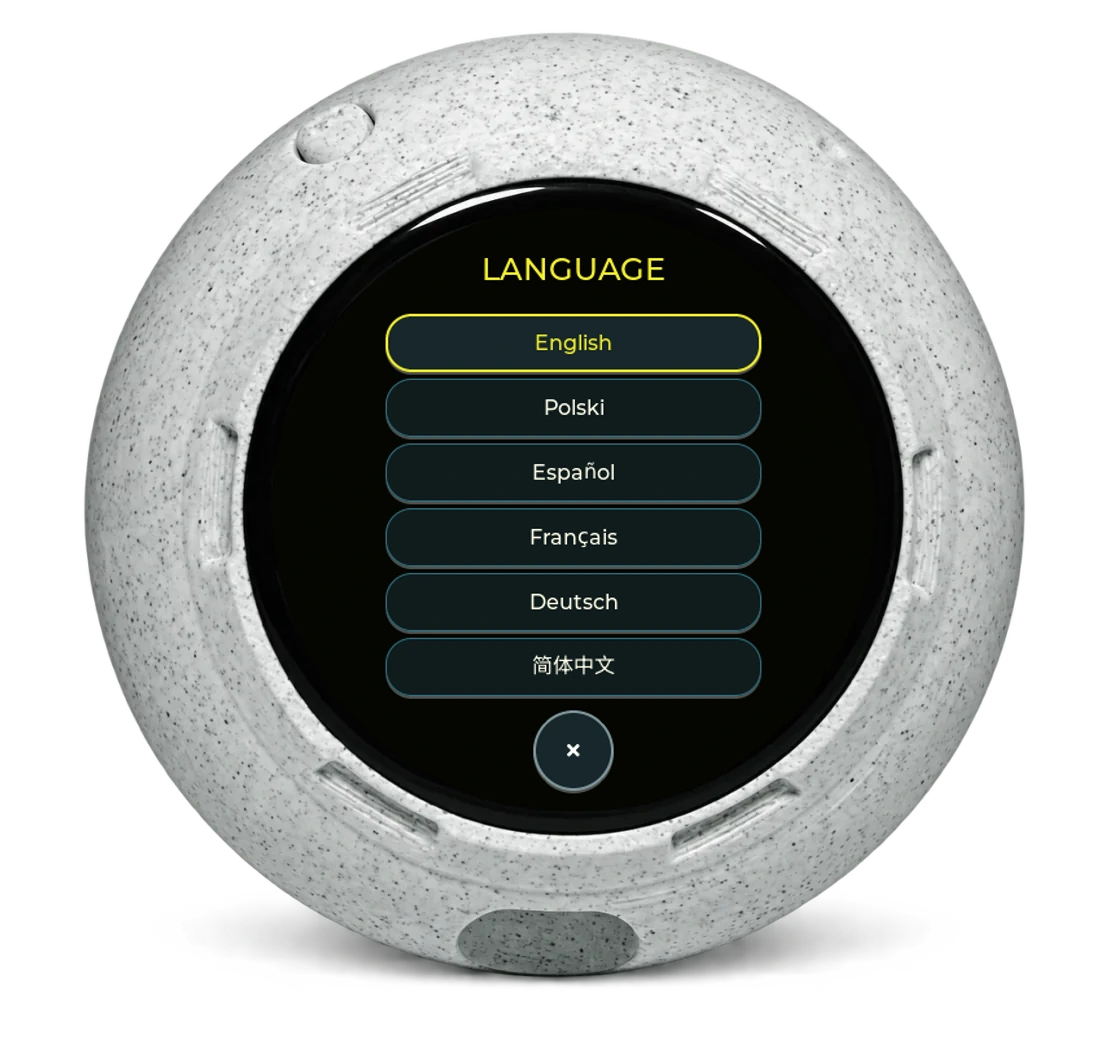
Six interface languages
Use your own language on the PrintDeck display and in Web Config.
-
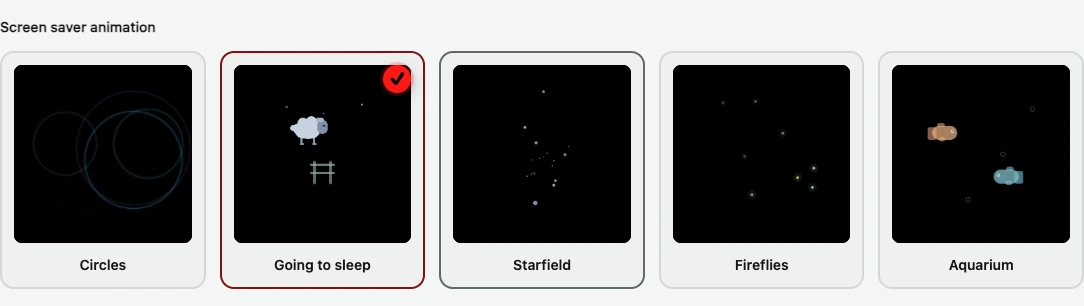
Screen saver
Dim the display, play an animation and turn the screen off on your own schedule.
Hardware & maintenance
-
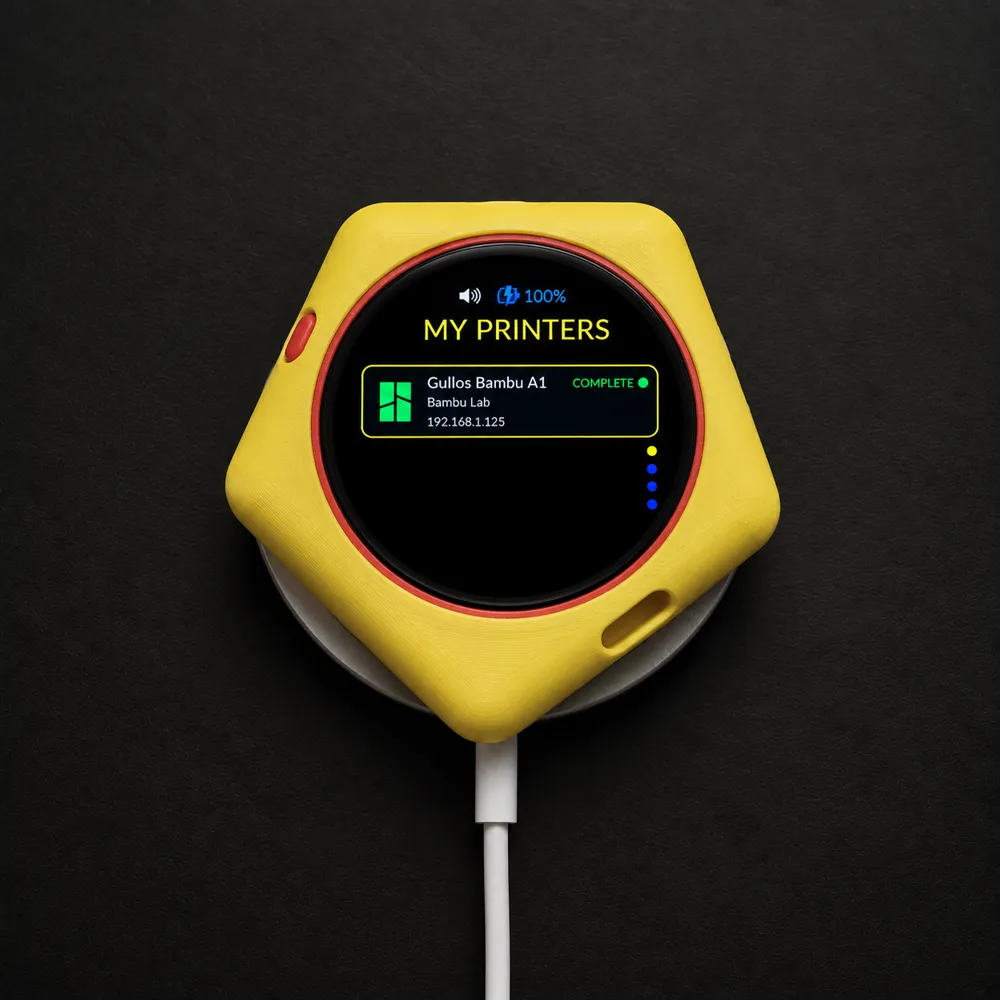
Battery and wireless charging
Check your print from the workbench, then snap the display onto a steel cabinet or leave it on a Qi pad to recharge.
-
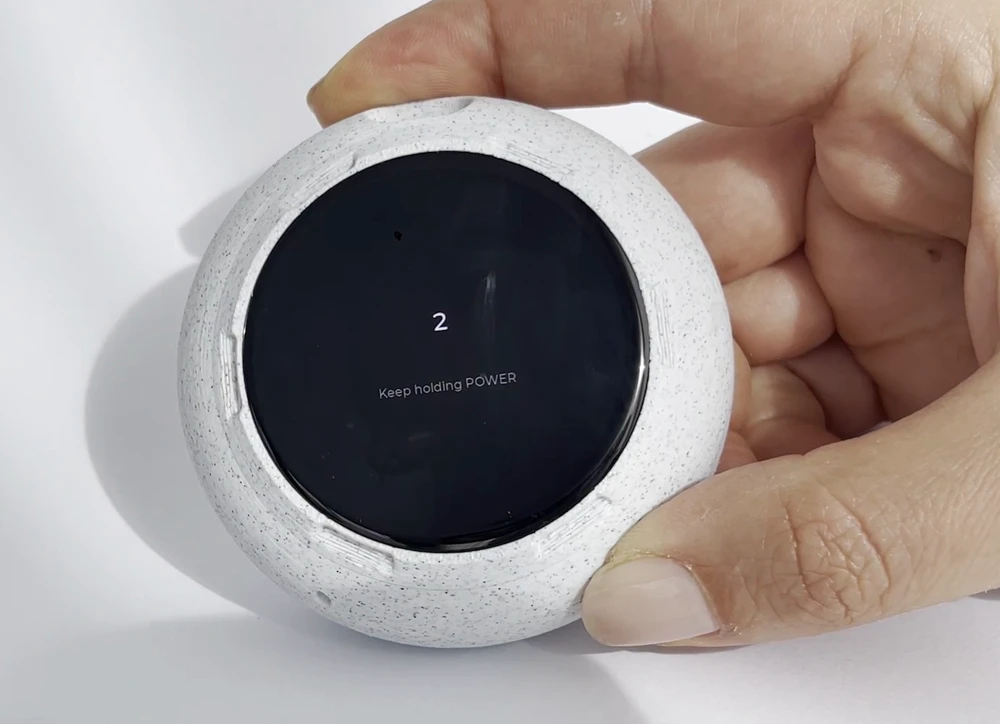
Power button shortcuts
On the 1.75″ AMOLED, put the screen to sleep before slipping PrintDeck into a pocket.
-
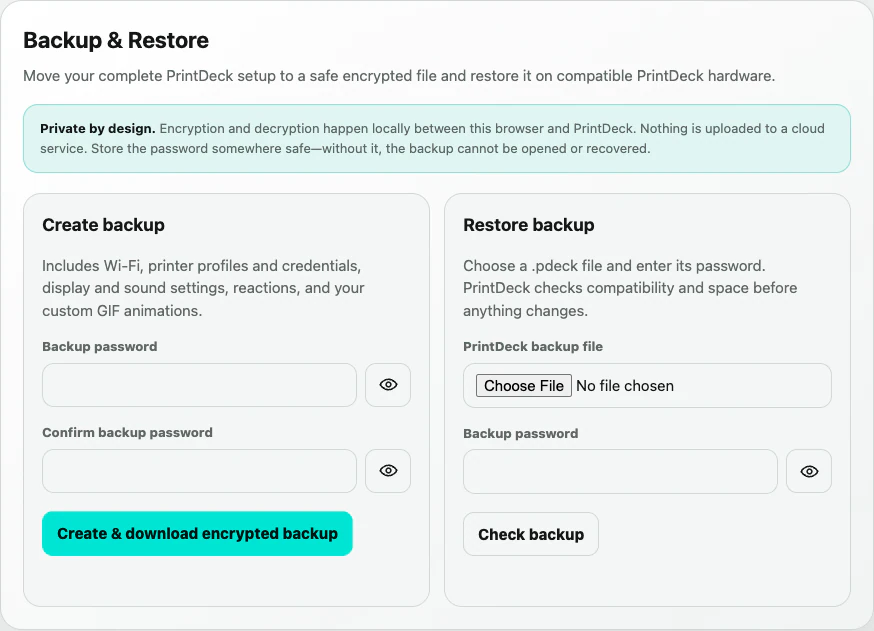
Back up and restore your setup
Save your printer connections and display preferences before a clean installation or a move to compatible hardware.
-
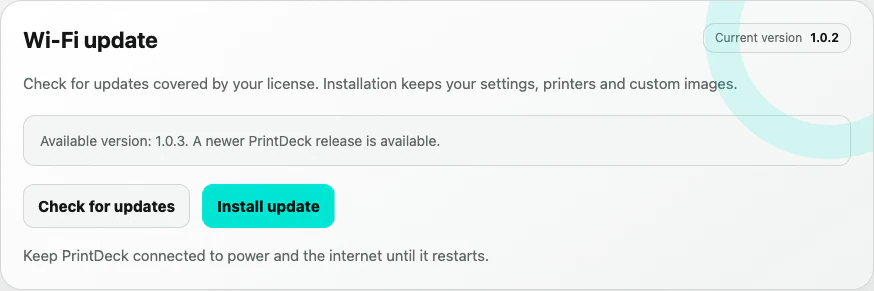
Firmware updates over Wi-Fi
Install a compatible update on your PrintDeck without reconnecting it to a computer.
-
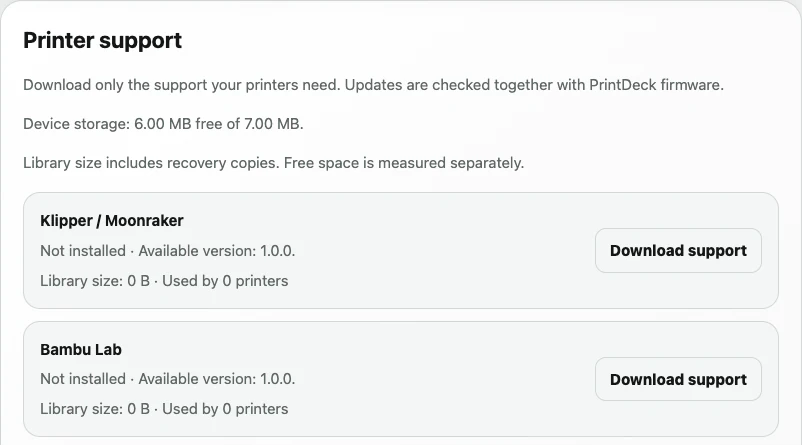
Printer support libraries
Add or update the connection software for a printer family independently of the PrintDeck firmware.
-
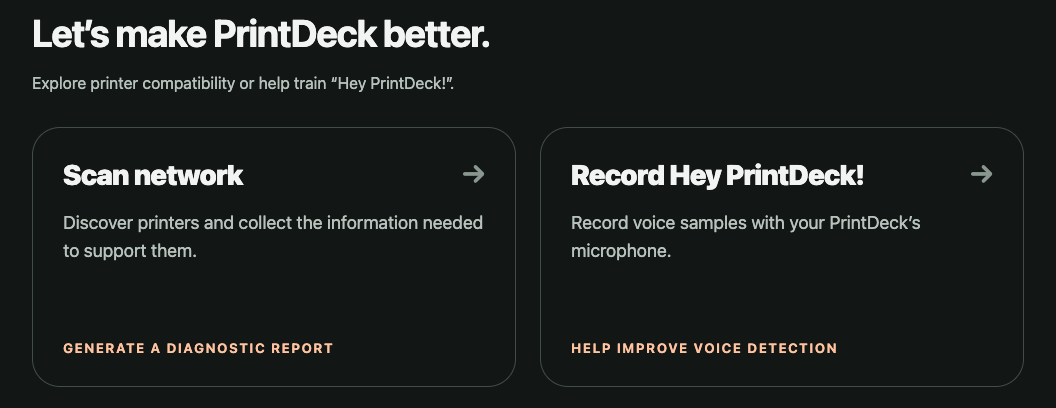
DEV TOOLS
Help PrintDeck read your printer’s status and recognise “Hey PrintDeck!” in a busy workshop.
 iPhone
 Android