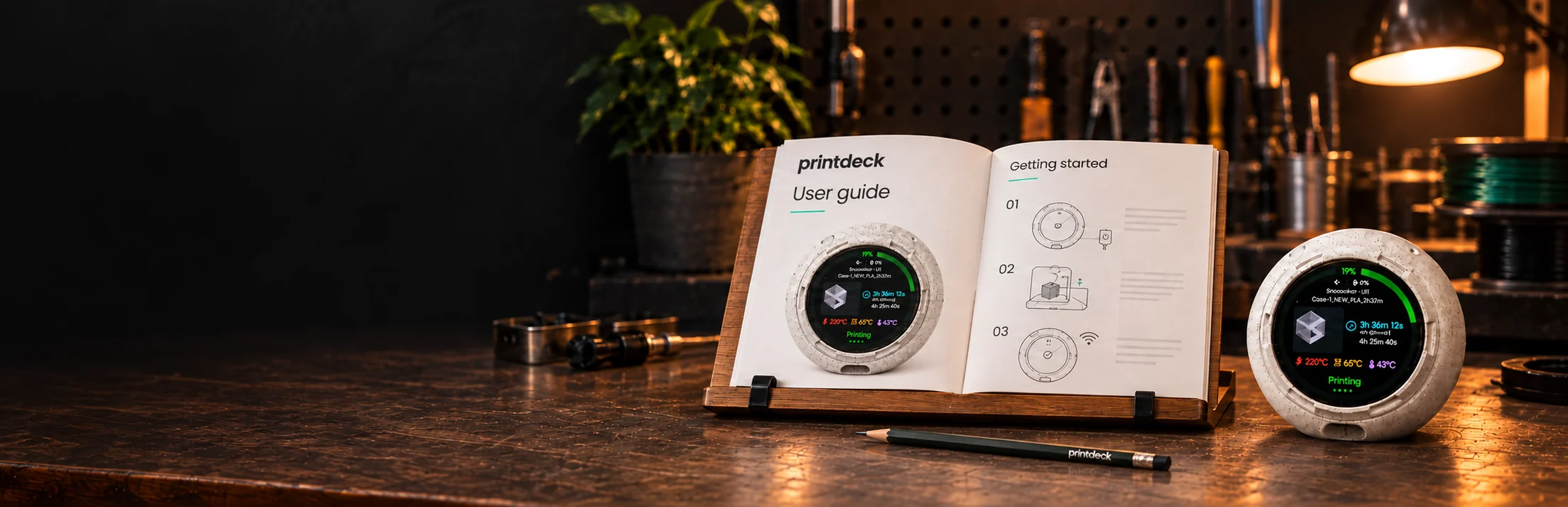
So… is PrintDeck just another Klipper status screen?
That would have been much easier. PrintDeck isn’t a little rectangle sentenced to showing 47% forever.
Reactions, swipeable views, local camera access, up to twelve tools through Moonraker and cases you can move from the printer to the fridge or bedside table make it a physical companion, not a dashboard bolted to one machine. It also works with supported Bambu Lab printers and keeps everything on your local network. Status is where PrintDeck starts—not where its personality ends.
Can I turn off the display while PrintDeck keeps running?
Yes. On the 1.75-inch AMOLED, a double-click of Power starts the screen saver. Double-click again at any later time while the screen saver is visible to turn the display off, or go straight to a dark screen if the animation is set to Skip. From a dark display, double-click to return to the screen saver; if its animation stage is set to Skip, double-click wakes the normal view instead.
Keep PrintDeck nearby without the glow. It stays connected to your printer, and one press of Power brings the display back. Touch and movement leave it resting; important print events can still wake it.
Can PrintDeck control my printer?
No. PrintDeck is made for monitoring. It works on your local Wi-Fi network, needs no cloud service and does not send printer data outside your network.
The only exception is the chamber light. PrintDeck can switch it on or off only when the compatibility check confirms that this is safe for your printer model. Everything happens locally on the device.
Why can’t I see my printer or some features?
Printer manufacturers do not use one common communication standard. PrintDeck handles many differences between brands and models, but it cannot recognize every variant.
Run Compatibility Check. PrintDeck gathers the required data locally, removes private information from the report and lets you download it. The report is not sent automatically—download it and email it to us.
This report helps us support your printer model.
Can I monitor a printer through OctoPrint?
PrintDeck connects to OctoPrint on your local network and brings job progress and temperatures to your display.
Connect PrintDeck to the same local network as OctoPrint, then add its address and a user or application API key with status permission. Each OctoPrint instance is a separate printer connection. Its host must stay on and connected to the printer.
PrintDeck reads the job name, status, progress, available time estimates and temperatures for up to twelve tools, the bed and chamber. Missing readings stay unavailable. This connection does not provide printer controls, a native camera feed or print thumbnails.
Open the OctoPrint setup guide (PDF)
Does PrintDeck support resin printers?
Yes! PrintDeck has been tested with the Uniformation GK3 Ultra, and we expect it to work with other GK3 models too. We haven’t had access to other resin printers yet, so we can’t confirm compatibility.
Have a resin printer? Give PrintDeck a try and let us know how it goes. We’ll do our best to get it working with your printer.
Where can I find other enclosures?
We provide free models for three enclosures that you can print yourself. You are also welcome to create your own modifications and designs.
Need help building your own display? Contact us about compatible components, enclosure options, firmware installation and individual assembly assistance.
Display hardware is manufactured by third parties.