

PRINTDECK CLOUD
Access your printers away from home.
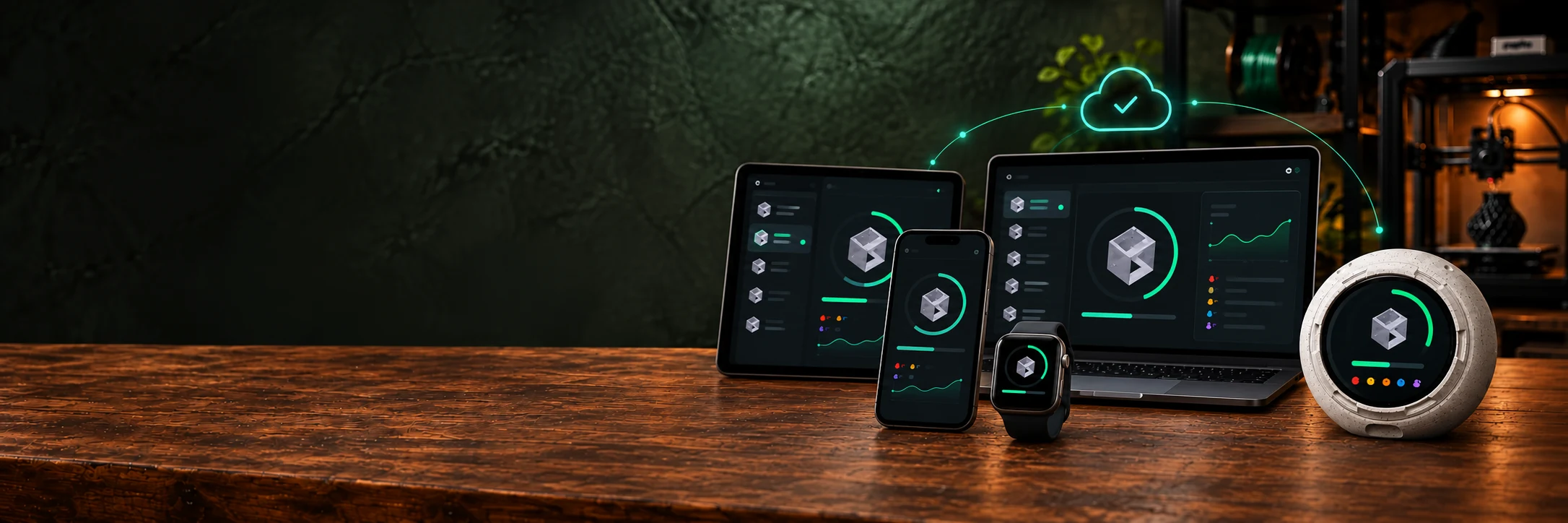
Check and control your printers from your browser and apps. Connect your own tools through the Cloud API and back up your PrintDeck configuration. Your printers stay connected locally to PrintDeck; Cloud provides access away from home.
Remote printer access
See print progress, temperatures and remaining time away from home. Use the remote controls supported by your printer and PrintDeck.
Phone and tablet apps
Check your printers from iPhone, iPad, Android phones and tablets.
Windows, macOS and Linux
Keep printer status beside your work with the PrintDeck desktop apps.
PrintDeck on Apple Watch
Check print progress on your wrist with the PrintDeck app for watchOS.
Cloud API for your integrations
Read printer status and send supported commands from your own dashboards, scripts and integrations. Access is tied to your PrintDeck account.
Configuration backups
Keep a backup of your PrintDeck configuration in your Cloud account.
HOW CLOUD WORKS
Your local PrintDeck
is the connection.
PrintDeck talks to supported printers on your local network. Once paired with your account, it sends updates to Cloud over an encrypted HTTPS connection. Your browser, apps and authorized integrations use Cloud to read those updates and send supported commands back to PrintDeck.
Explore compatible printers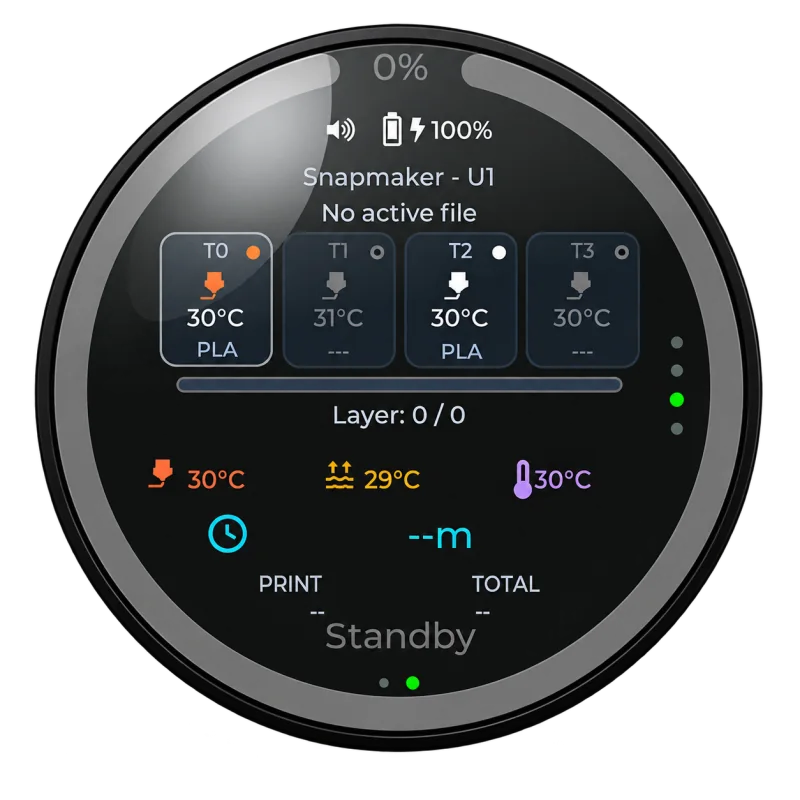
PrintDeck connects your local printers to Cloud, apps and the API.
Explore the PrintDeck apps
Use PrintDeck on your phone, tablet, computer or Apple Watch.
Browser access Open your Cloud dashboard on a phone, tablet or computer without installing an app.
Open CloudCONNECT YOUR DEVICE
Connect in three steps.
Start with an activated PrintDeck connected to Wi-Fi and a PrintDeck account with a confirmed email address.
- 01
Open Web Config
On your home network, open the Web Config address shown on PrintDeck. Go to Settings → Cloud and choose Connect account.
- 02
Approve the connection
Open PrintDeck Cloud, sign in, check that the pairing codes match and approve the connection.
- 03
Open your dashboard
Return to Web Config and wait for Connected. Your PrintDeck is now available in your Cloud account.
Keep PrintDeck online. Remote access needs an internet connection on PrintDeck. Status updates are periodic; slow or interrupted connections can delay them.
More than firmware.
Your firmware purchase supports the work behind PrintDeck: mobile and desktop apps, a Unified API for your projects, free reaction and animation sets for compatible displays, printable enclosure designs, continued development and support.
Cloud, data and your license
Do I need Cloud to use PrintDeck?
Cloud is entirely optional. Your PrintDeck continues to work on your local network without Cloud enabled.
Does Cloud store data?
Cloud keeps the latest device and printer state linked to your account, plus printer thumbnails. Live View images are cached temporarily.
Are printer passwords uploaded with status updates?
Printer passwords, access codes and API keys are excluded from ordinary status reports. MQTT configuration secrets entered through Cloud are encrypted in storage for delivery to PrintDeck.
Is Cloud included forever with my firmware license?
PrintDeck firmware is a one-time purchase with a license lasting three calendar years from first activation.
Cloud is a separate, optional service, free during the public beta. A separate Cloud subscription may be introduced later, with advance notice and a separate opt-in.
Connect your PrintDeck.
Open PrintDeck CloudFree during the public beta. Optional for local use.