
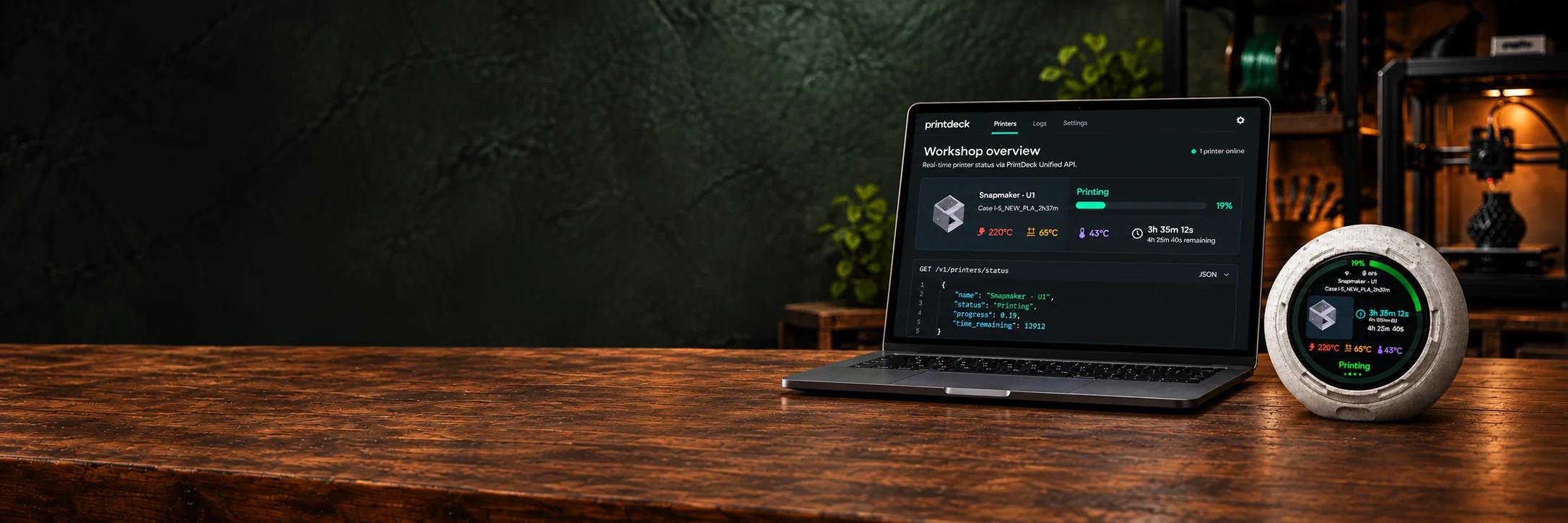
Your printer data.
Your next idea.
Connect your printer data to dashboards, automations and your own tools. One local, read-only API.
One printer API. Many printer formats.



{
  "printer": ...,
  "state": ...,
  "progress": ...
}
MQTT




PrintDeck translates supported printer protocols into one versioned, read-only JSON contract. Build your software once and read the same shape from Klipper and supported Bambu Lab printers.
Your idea, without every vendor protocol.
Let PrintDeck handle the printer-specific connection while your application works with a small, predictable data model.
Local dashboards
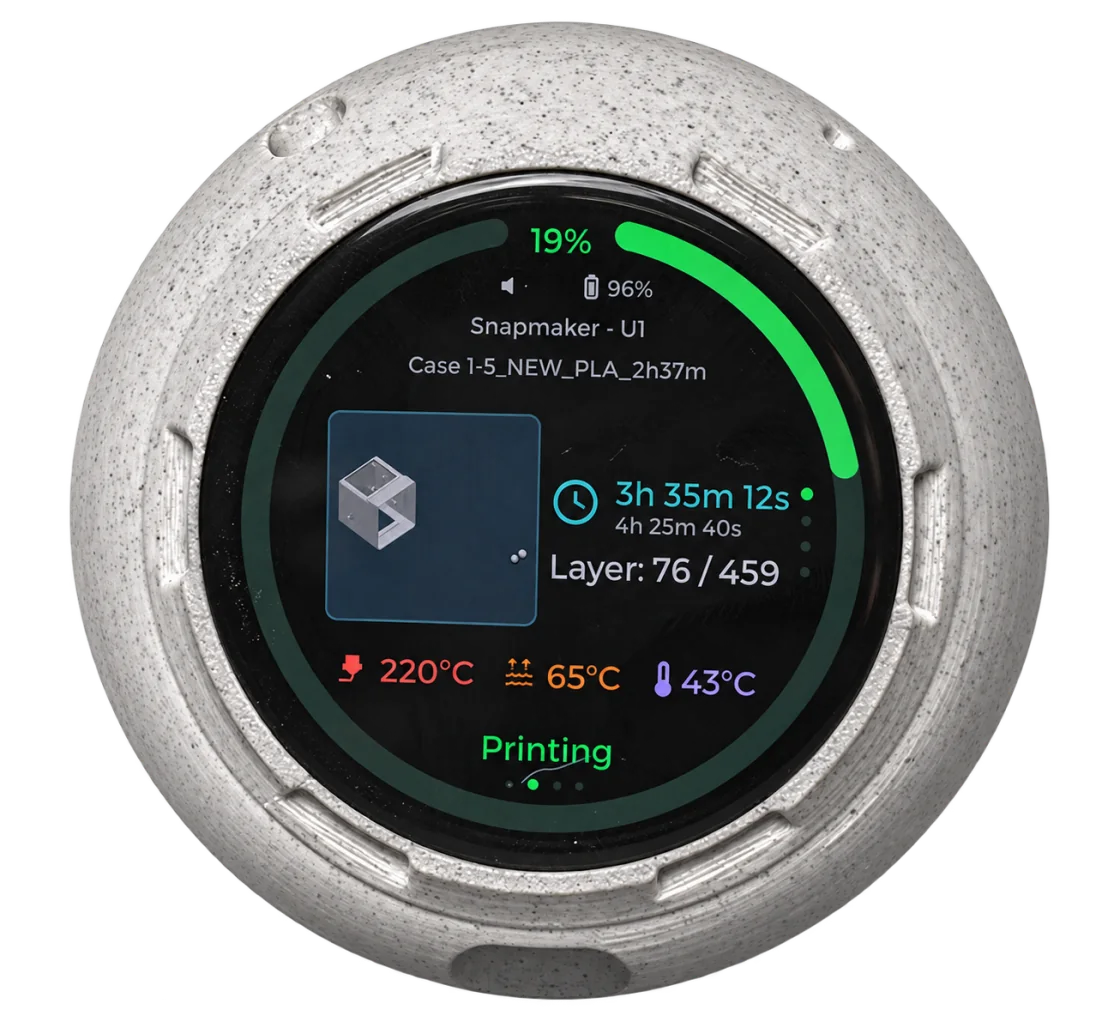
Show progress, timing, temperatures and connection state on wall displays or workshop panels.
Home Assistant bridges
Feed normalized printer status into your existing local automations without implementing MQTT or Moonraker twice.
Node-RED flows
Poll one JSON shape and route printer events into notifications, lights or internal workflows.
Monitoring tools
Build scripts and service panels that understand online, offline, stale and partially available printer data.
Useful data.
No control surface.
The API exposes device information, printer identity, status, nozzles and material slots. It cannot start, pause or cancel a print.
GET /v1/printers/statuscurl http://PRINTDECK-IP/v1/printers/status \
-H 'Authorization: Bearer pd_your_token_here'{
"api_version": "v1",
"statuses": [{
"printer_id": 1,
"connection": {
"state": "online",
"reachability": "online",
"detail_level": "full",
"stale": false,
"updated_at_ms": 418520
},
"job": {
"phase": "printing",
"kind": "print",
"activity": "printing",
"name": "Bracket",
"progress_percent": 42.5,
"elapsed_seconds": 1260,
"remaining_seconds": 1740,
"current_layer": 48,
"total_layers": 112
}
}]
}From Web Config
to your first request.
- 01
Open Unified Printer API
In Web Config, open Device Settings and choose Unified Printer API above Backup & Restore.
- 02
Enable and copy the token
PrintDeck generates a random access token and stores it locally on the device.
- 03
Send Bearer authentication
Use the token in the Authorization header of every request to your PrintDeck IP address.
- 04
GET unified data
Read printer lists or status and consume the same JSON shape across supported printer types.
Your printer secrets
stay behind PrintDeck.
The Unified Printer API never returns printer passwords, LAN access codes, serial numbers, Wi-Fi passwords, camera frames or raw vendor payloads. Keep PrintDeck on a trusted local network and do not forward its port to the internet.
No webhooks. No cloud relay. No printer-control endpoints.
Read the complete API guideConnect printer data
to the tools you already use.
Each guide turns the Unified Printer API into a practical local integration, with working examples and a clear setup path.
MQTT for your local tools
PrintDeck sends normalized printer data to a local broker such as Mosquitto. Your apps subscribe to updates instead of repeatedly requesting them through the REST API. HTTP and MQTT can run independently or together.
Status updates
Receive job state, progress, temperatures and availability in your dashboards or Node-RED flows.
Print events
React to observed print starts, progress milestones and attention events. Live events are not retained or replayed after reconnecting.
Home Assistant Discovery
Let Home Assistant create devices and entities automatically through its built-in MQTT integration. Or choose PrintDeck through HACS with MQTT and keep standard Discovery off.