



Progress you can act on
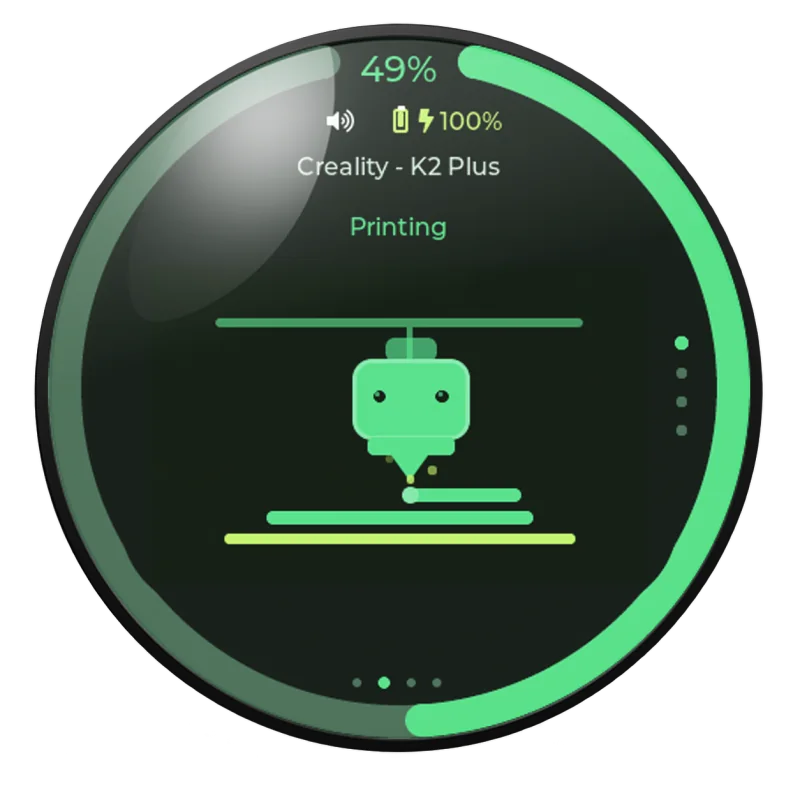
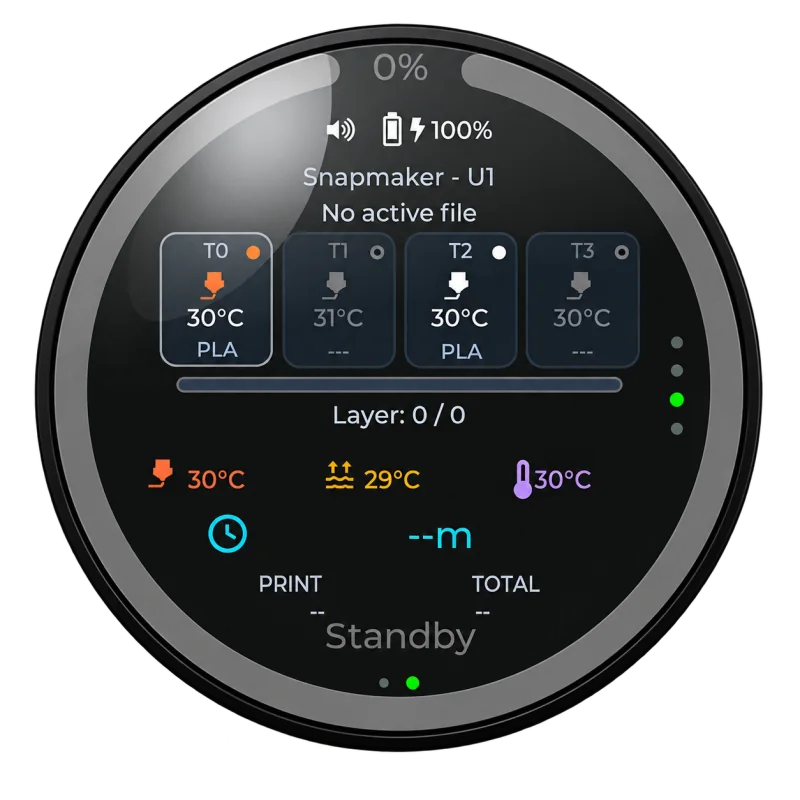
Check progress, remaining time, layer information and live temperatures without opening another device.

Live printer data. Custom animations.
A fresh experience for the display you already own.
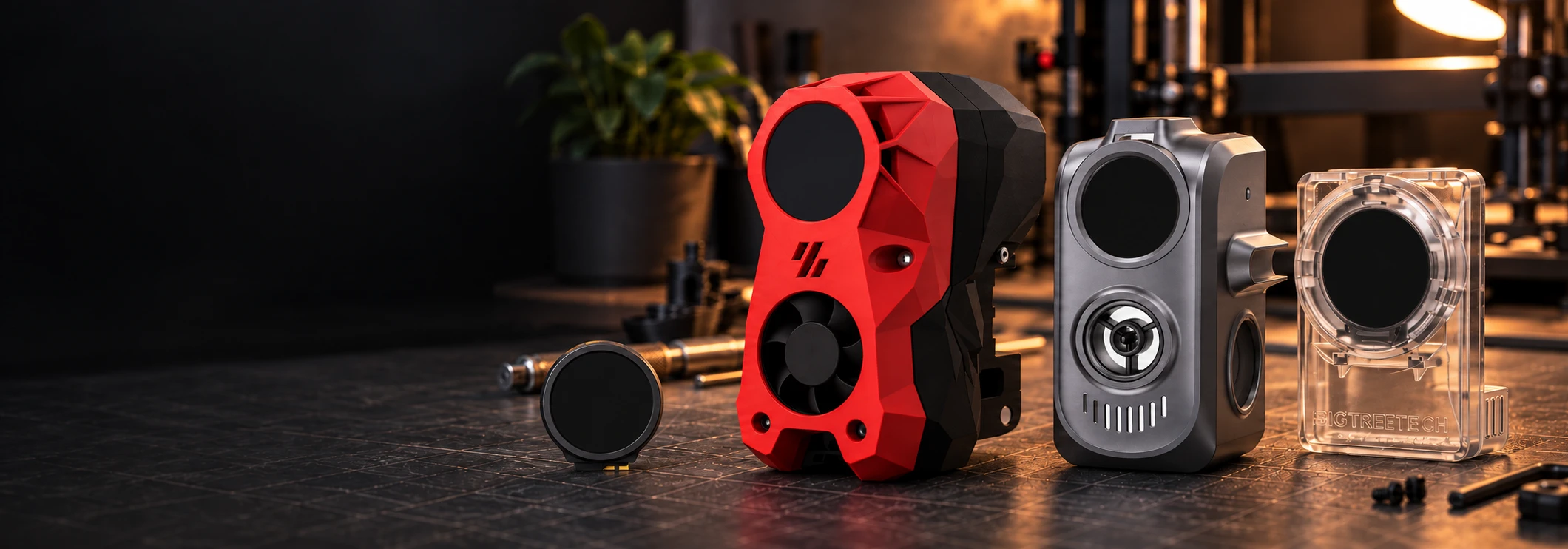
KNOMI is still strong hardware. Turning it into a complete PrintDeck device was not a simple port: its board and display constraints demanded dedicated engineering, testing and a significant investment. We made that investment because this hardware deserves more than a drawer—and because its community asked for more.
The result is a modern, local printer companion that keeps the hardware you already own useful, expressive and ready for what comes next.
PrintDeck moves reaction customization into Web Config. Customize the reaction slots you want, preview the result and reset any override whenever you like. Which reactions can appear depends on the status data your printer reports.
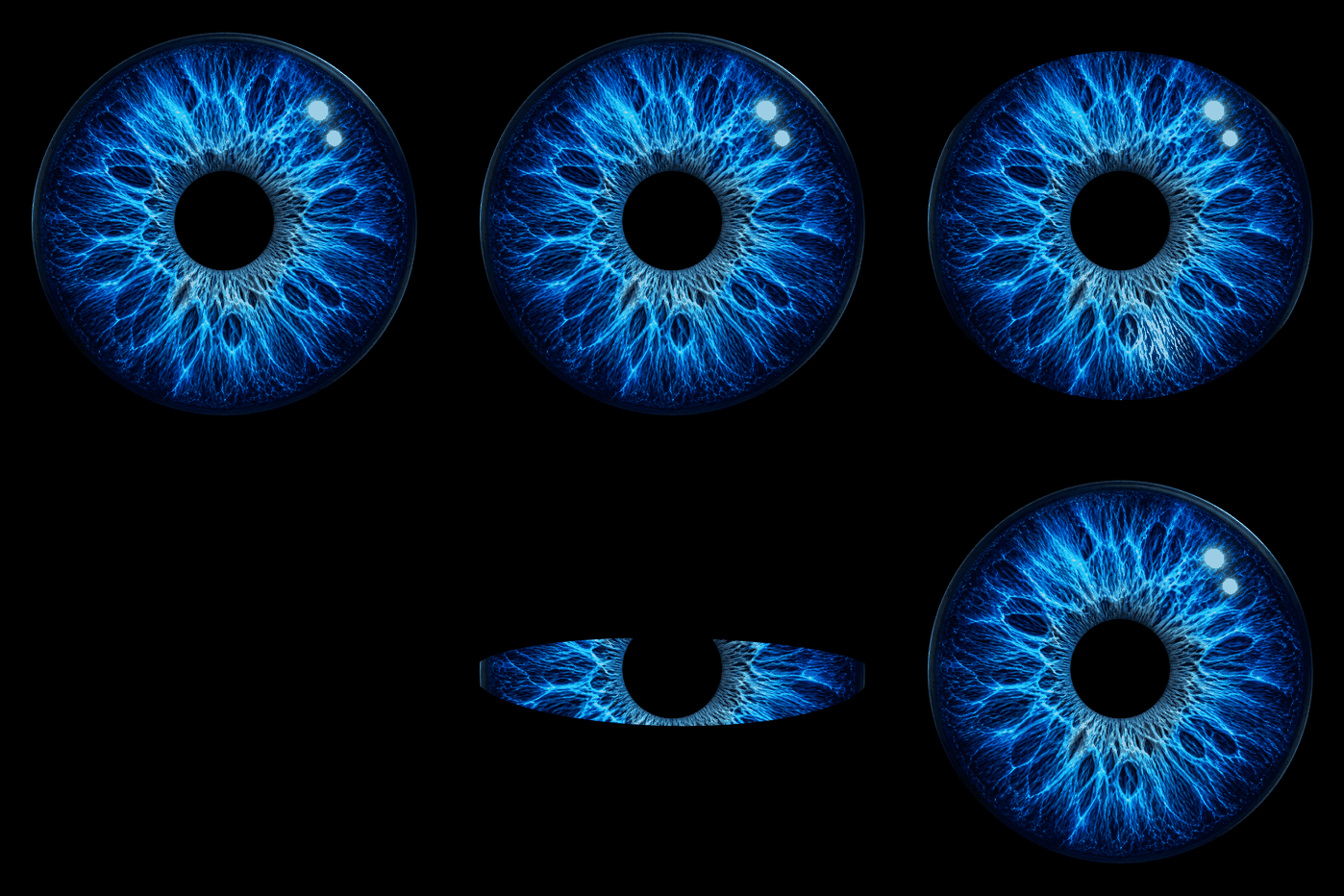
PrintDeck provides 18 reaction slots. A reaction can appear only when PrintDeck can reliably identify that state from data your printer already reports. PrintDeck does not require printer.cfg changes or additional macros, so availability varies by printer and firmware.
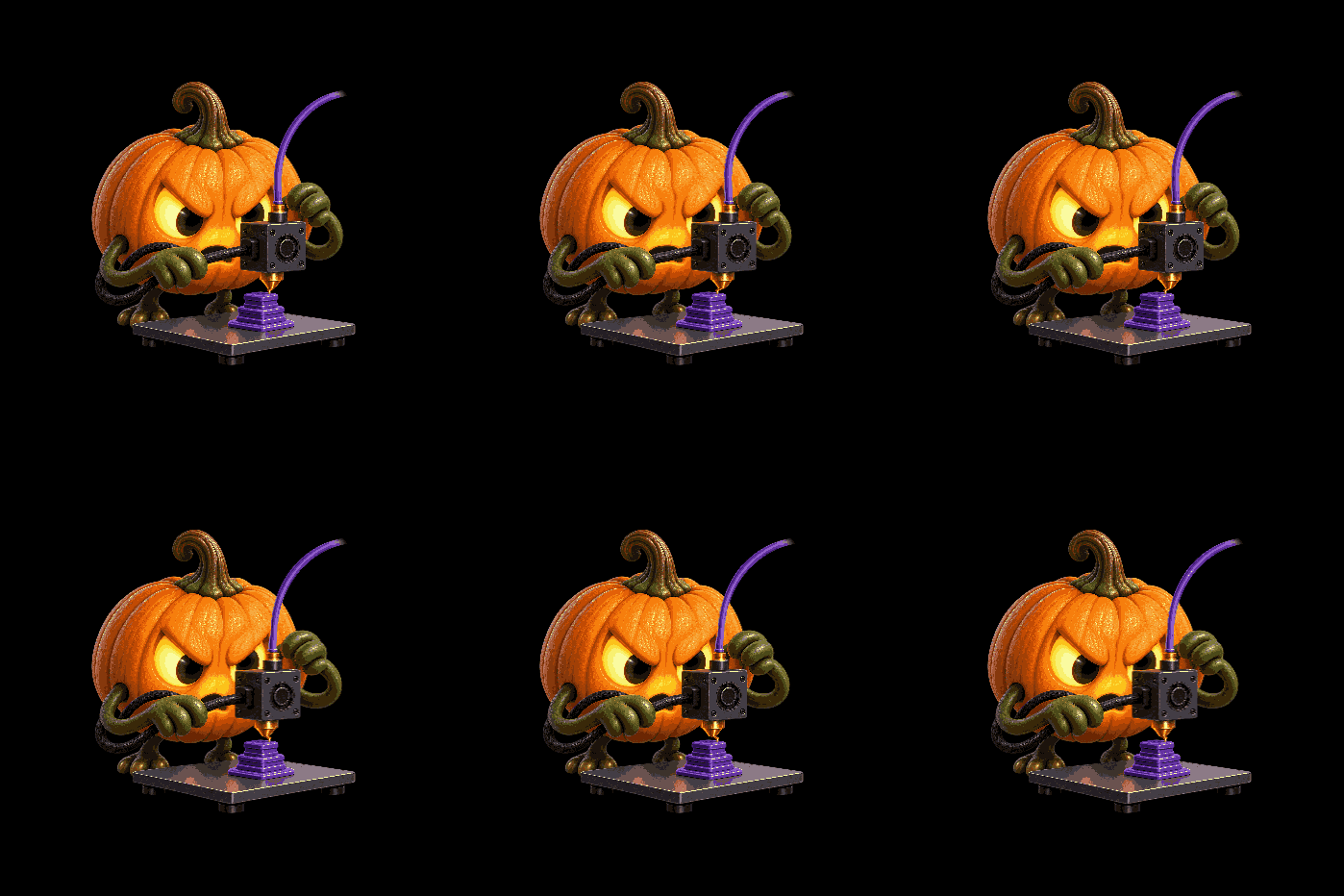
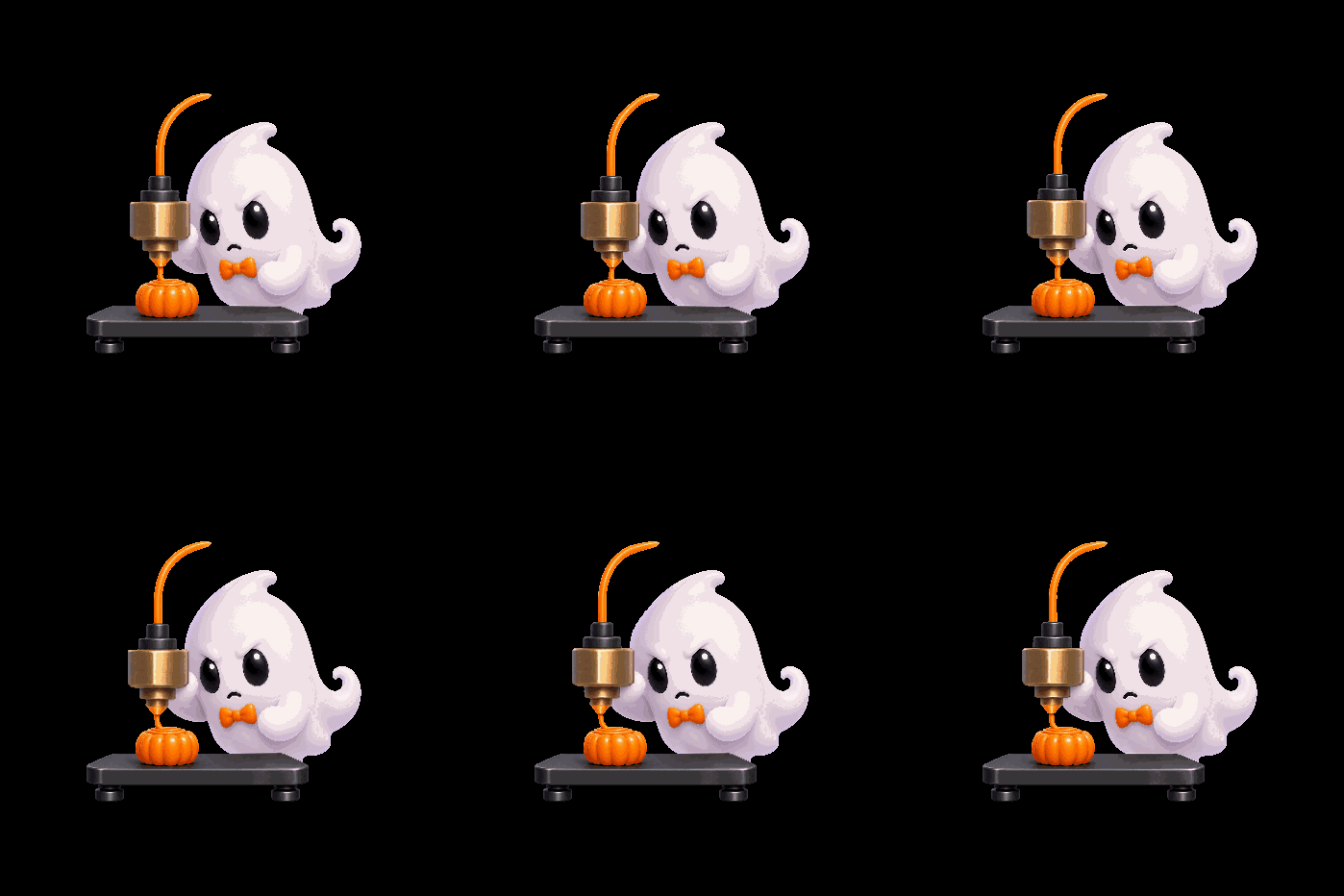
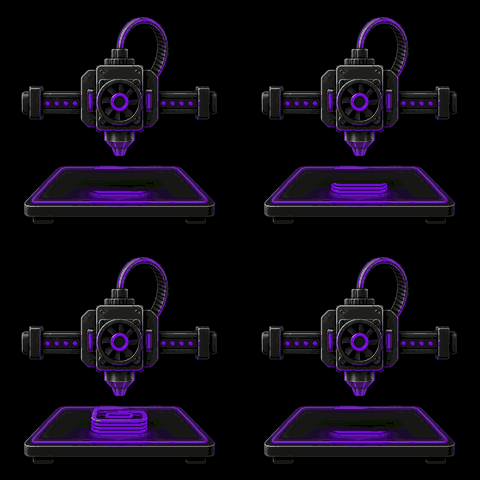
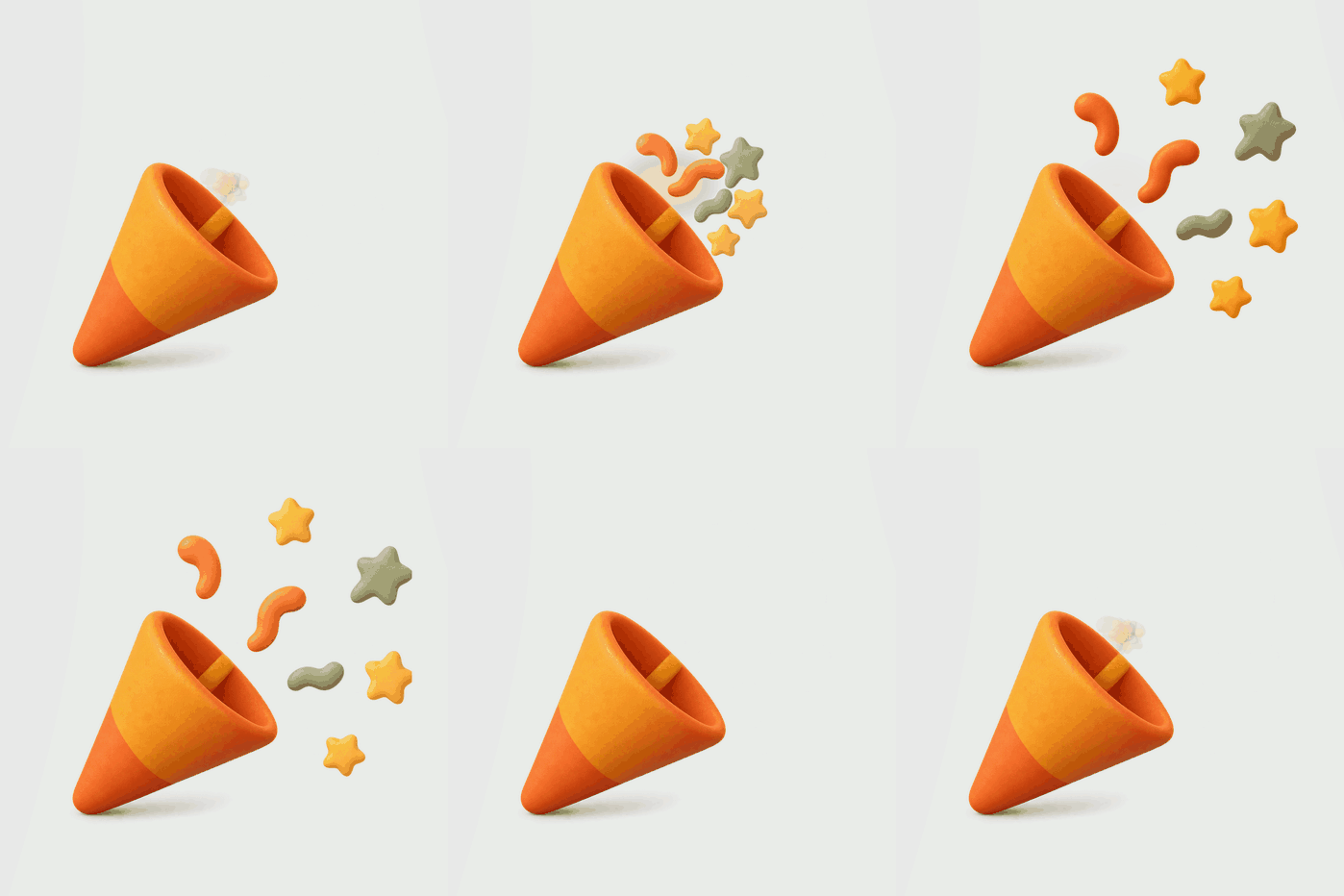
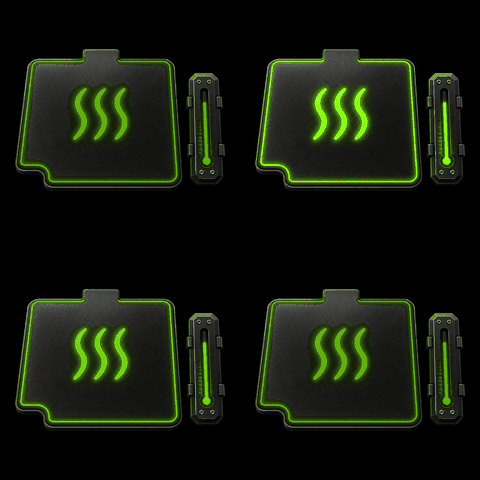
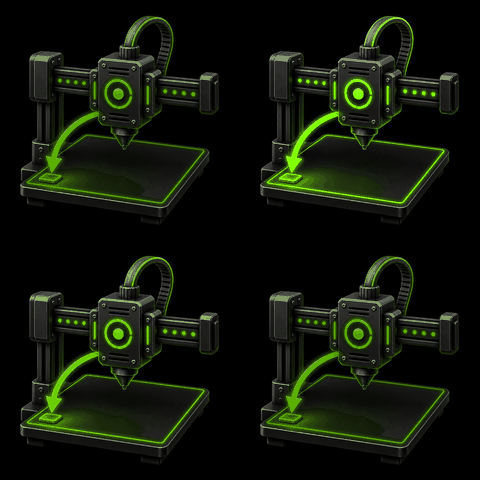
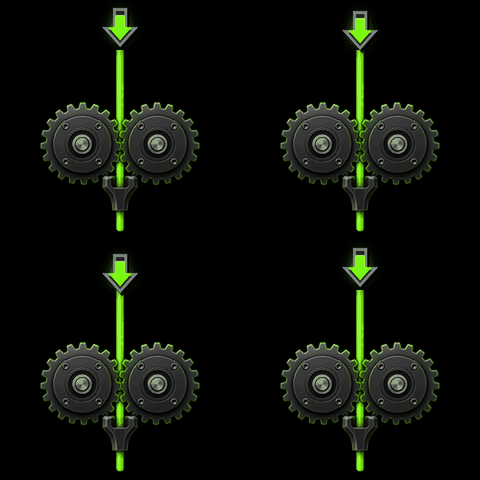
These are live examples from PrintDeck’s included reaction set. Every card keeps animating, and each reaction slot can be customized independently.
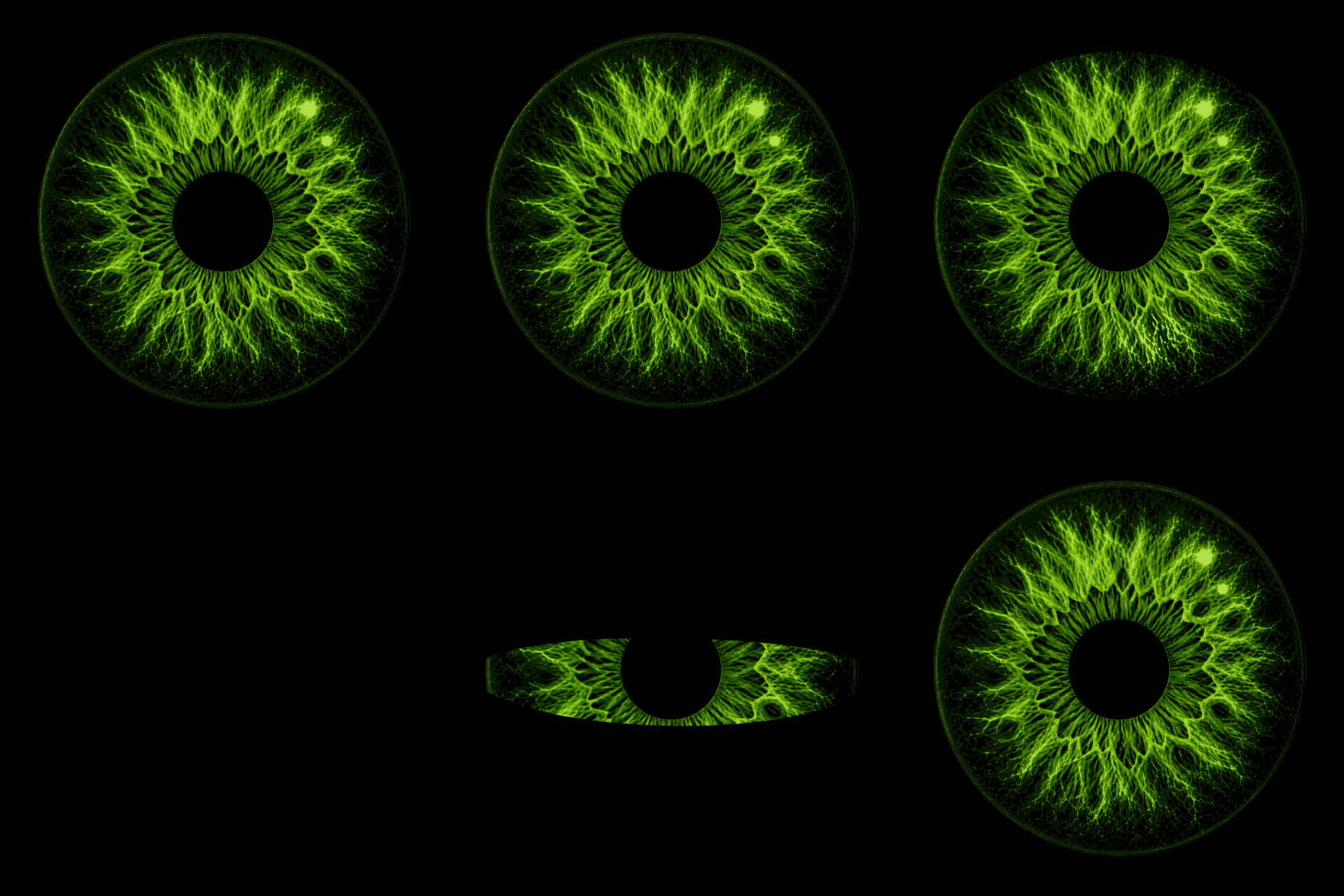
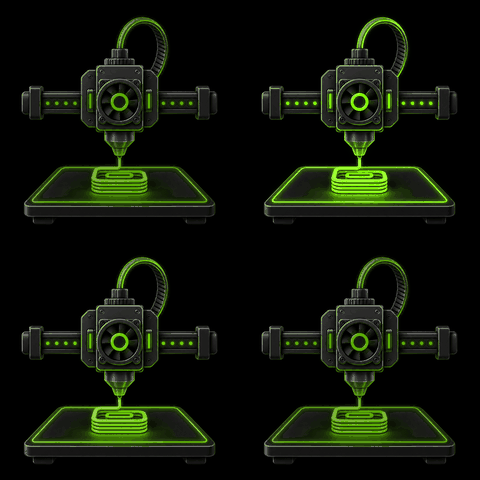
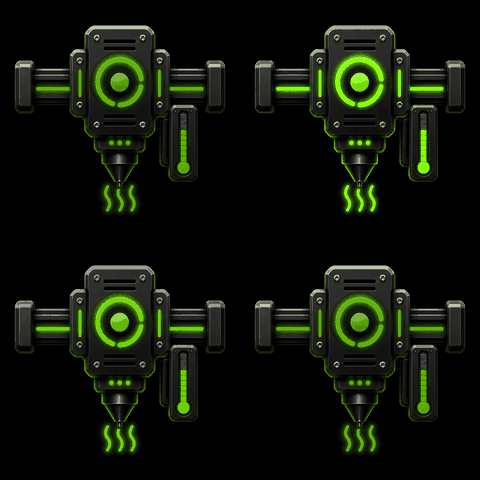
Prefer a ready-made look? Explore complete animation sets and find your favourite.
Browse animation setsWhen PrintDeck can reliably identify a state your printer reports, the matching reaction can take the stage. Then swipe to the live details you need for the rest of the print.
Check progress, remaining time, layer information and live temperatures without opening another device.
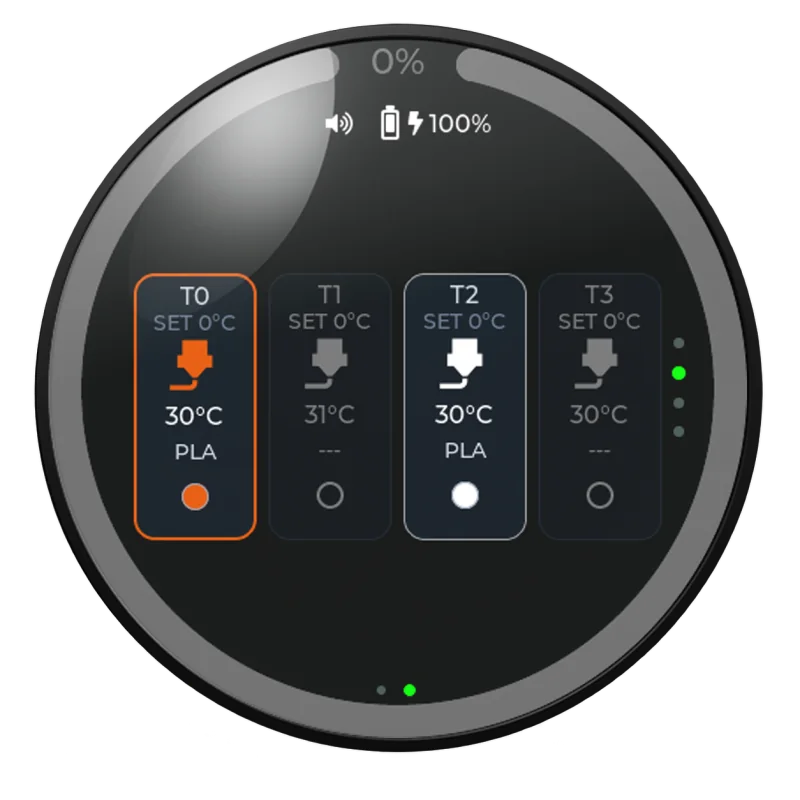
See active tools, target temperatures and available tool details on a dedicated view.
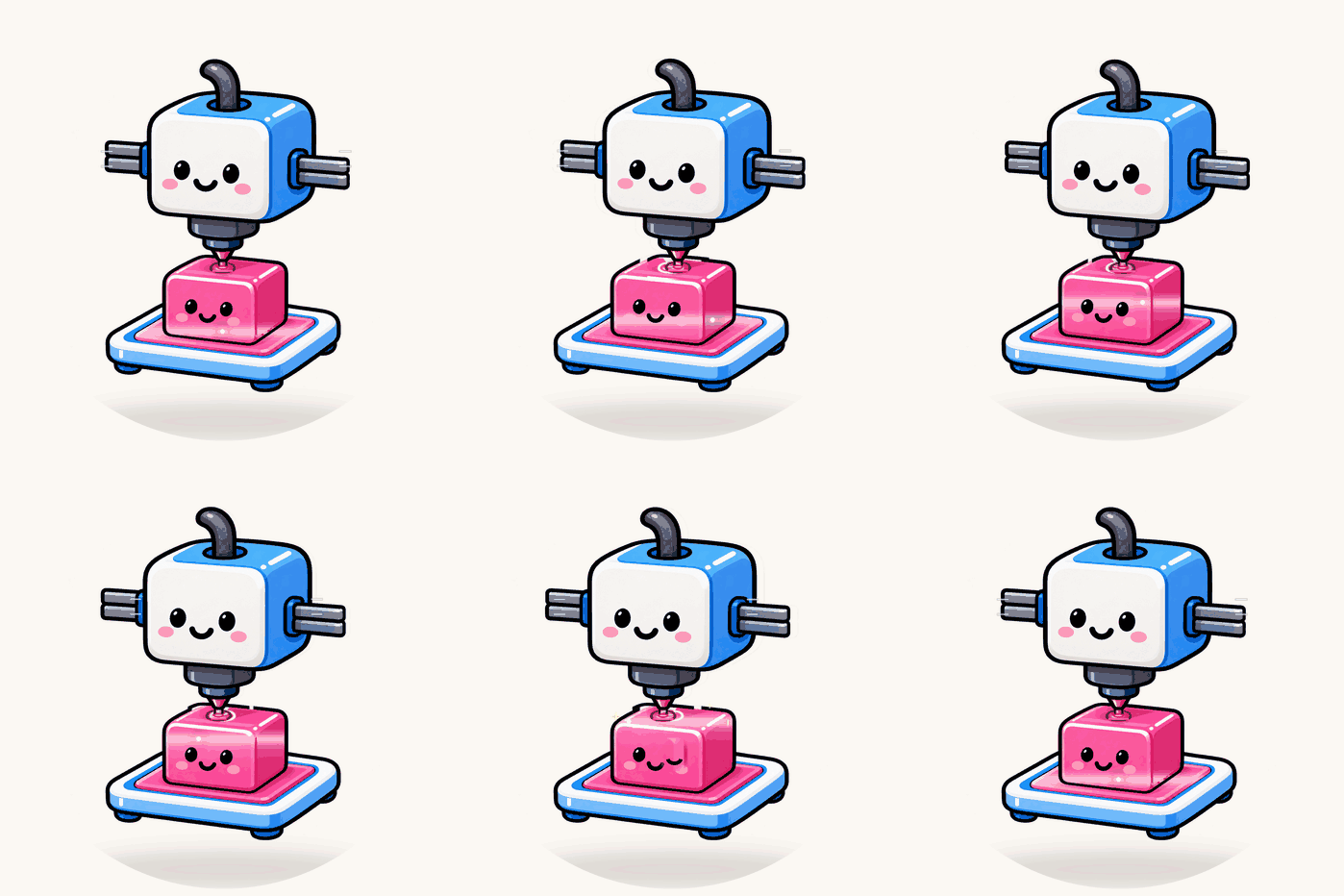
Give printing, heating, pauses and other detected printer states their own animated reaction.
Custom reactions are the headline. The rest of PrintDeck is what makes the display valuable every day.
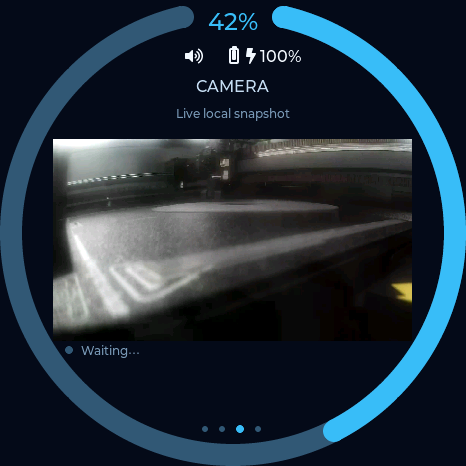
Check supported local printer cameras directly from the display.
Choose visual themes and edit their colours to make the interface yours.
Keep PrintDeck current without repeating the original USB installation.
Find compatible printers on your local network with a guided setup.
From printers and live status to camera, tools, clocks, Web Config and a long-press Quick Menu—PrintDeck gives KNOMI a complete, touch-friendly navigation system.

The USB driver comes from KNOMI’s WCH USB-to-serial hardware—not PrintDeck. We made everything after that a clear, guided process in your desktop browser.
Use a USB-C data cable and connect KNOMI directly to your computer. Avoid a USB hub for the first installation.
Windows usually installs the WCH driver automatically through Windows Update.
Linux works immediately on most distributions; only serial-port permissions may need attention.
macOS may need the official WCH driver and one approval in Privacy & Security before Chrome can see KNOMI.
Open the installer in desktop Chrome or Edge. Select KNOMI, choose First installation / Factory reset, confirm the full erase and wait for 100%. The display restarts with its new PrintDeck experience.
PrintDeck connects directly to compatible printers on your local network. Credentials stay on the device, and nothing is uploaded automatically.
KNOMI has no speaker or audio output path, and its board provides no supported connection for one. This is a hardware limitation, not a PrintDeck setting. Visual reactions, on-screen alerts and live printer information remain fully available.
Straight answers about installing PrintDeck, customizing reactions and using the printer data you already have.
No. PrintDeck is designed to read the standard status data your printer already exposes through Moonraker. Live print status, progress, temperatures, layers and timing do not require PrintDeck-specific macros or changes to G28, bed-mesh or other printer macros. Highly specific reactions appear only when your printer reports enough reliable information to identify them.
Yes. Open Web Config, choose an available reaction slot, upload your GIF and preview it before applying it. You can customize slots independently or restore the built-in animation at any time—no C arrays, VS Code project or firmware rebuild required.
Yes. Swipe from the reaction screen to see print progress, remaining time, layers, live and target temperatures, active tools and additional motion, fan or heater telemetry when the printer provides it. Moonraker installations can expose information for up to twelve extruders.
Yes, when the printer and its local camera source are supported. PrintDeck connects directly to the camera on your local network while the camera view is open.
Normally, no. The initial PrintDeck installation uses the guided browser installer. Later supported releases can be installed over the air, with a configuration-preserving USB update available as a recovery option.
Your KNOMI already has the screen and processing power. PrintDeck gives it a fresh purpose—and gives you a modern printer companion you can keep improving.