

Device Live View
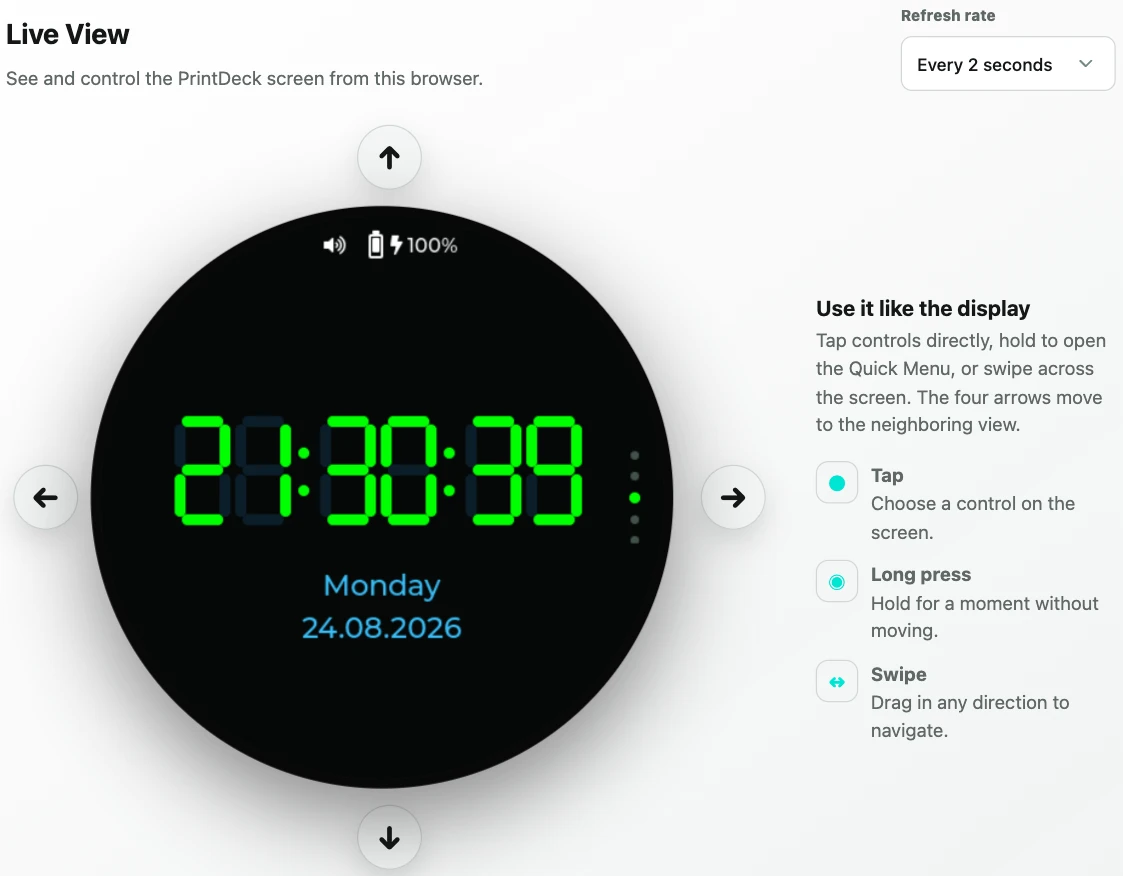
See the PrintDeck screen in your browser and navigate it with a tap, hold or swipe.
How it works
Navigate the display from your browser
Open Live View in Device Settings. The view shows the display of the selected PrintDeck. Tap a printer, swipe between screens or use the arrow buttons. A long press opens the Quick Menu. Locally, all you need is a Wi-Fi connection to the device.
Keep Live View within reach
Enable the Live View bar to open the screen from the bottom of any settings page. On Panda KNOMI, which has no touchscreen, this is how you navigate the device. Pair your PrintDeck with Cloud to reach Live View from your account when you are away.

 iPhone
 Android