

DEV TOOLS
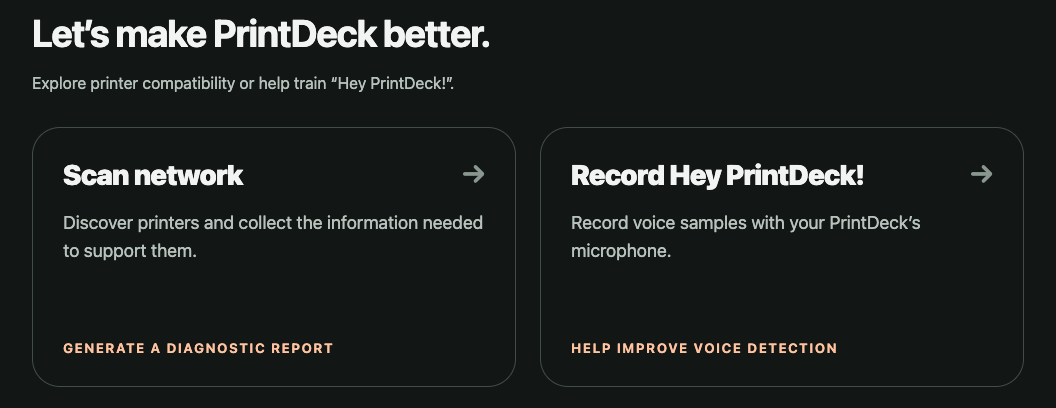
Help PrintDeck read your printer’s status and recognise “Hey PrintDeck!” in a busy workshop.
How it works
Use these three tools in your display’s local Web Config. DEV TOOLS is available by invitation to owners of the 1.75″ AMOLED display.
Find a missing printer reading
Does your printer show progress while PrintDeck shows a blank field? The scanner queries discovered printers and records how each model structures its replies. That lets us find the right field for a reading such as progress or temperature.
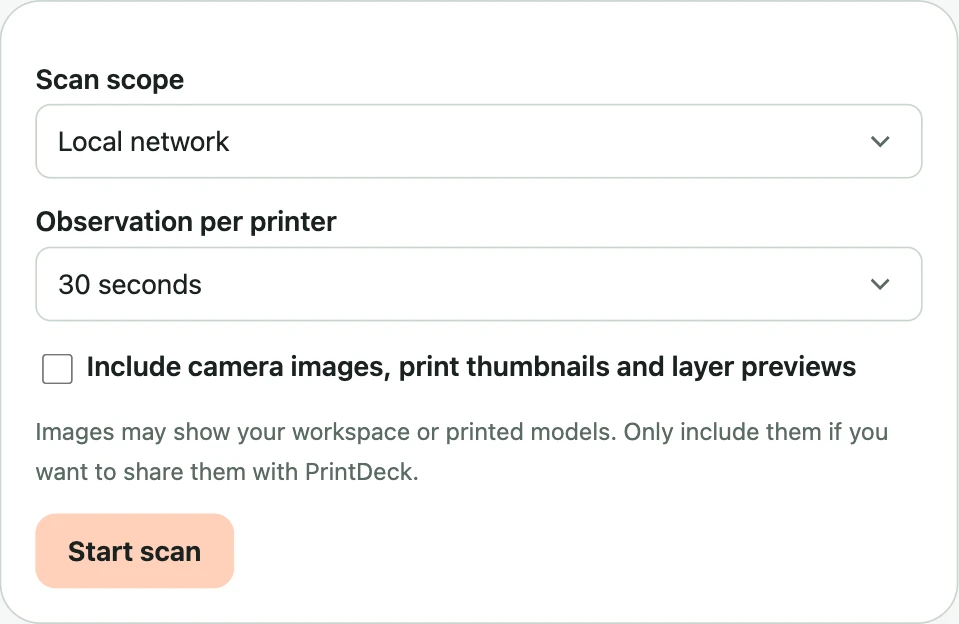
- Open Scan network. Scan the local network or enter one printer’s IP address.
- Choose how long to observe each printer and start the scan. An active job helps capture progress. Camera images and thumbnails are optional.
- Download the ZIP report and tell support the make, model and missing reading. The report masks credentials and replaces identifying values with aliases.
Record your “Hey PrintDeck!”
The same phrase sounds different from one person to the next. A sample in your everyday voice helps the display recognise you in your workshop.
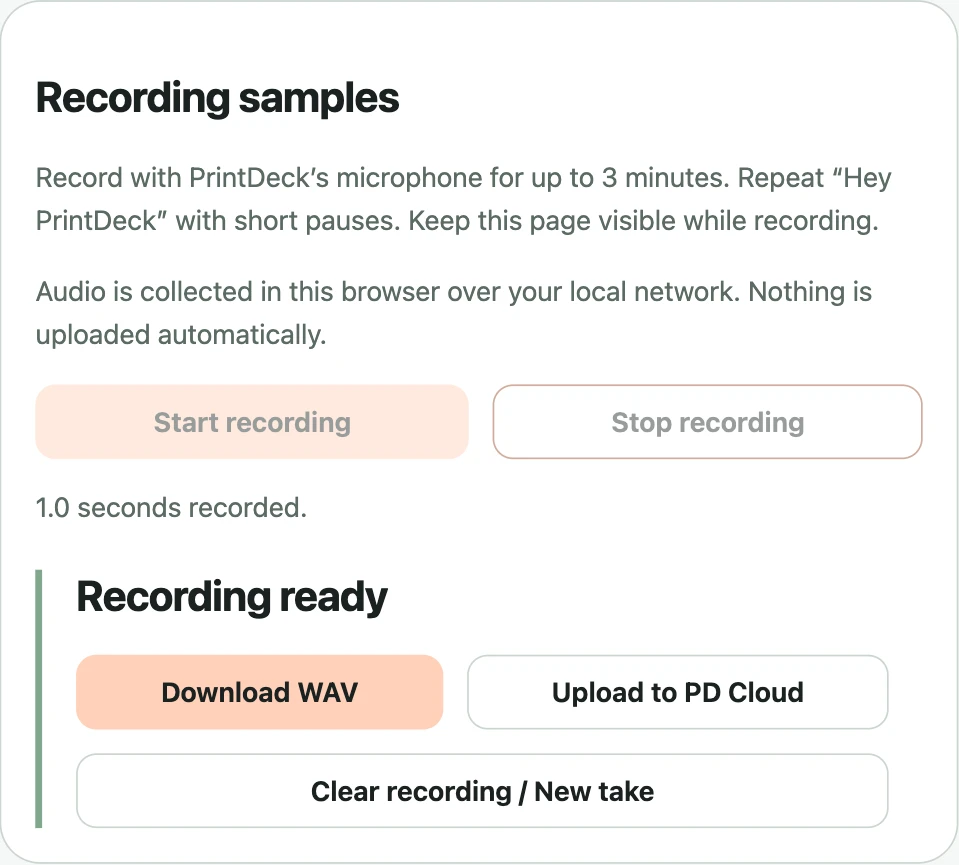
- Open Record Hey PrintDeck! and start recording. Keep the tab visible and speak towards the display’s microphone.
- Say “Hey PrintDeck!” naturally, as you would during a print. Leave about 1–2 seconds between repetitions. A take can last up to three minutes.
- Stop and choose Download WAV to keep the take. Clear recording / New take discards the copy in the tab so you can try again.
Catch a false wake
Did a sound in the room wake your display? These clips help us identify sounds the detector mistakes for the wake phrase.
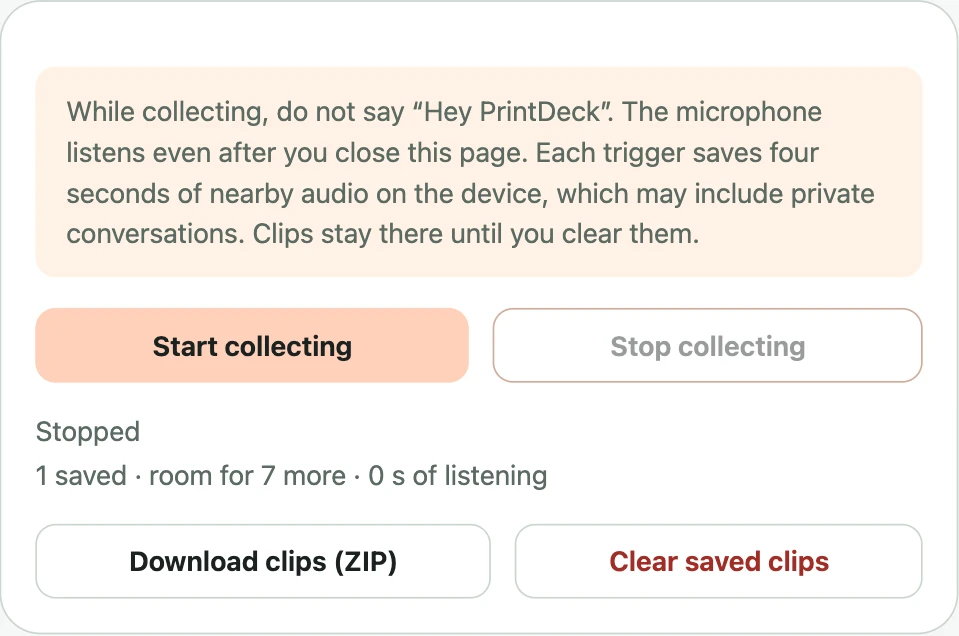
- Open False wake collection and start collecting. Carry on as usual without saying “Hey PrintDeck!”.
- Each trigger saves four seconds of nearby audio on the display. Collection continues if you close the tab. Choose Stop collecting when you finish.
- Download the clips as a ZIP and listen before sharing. Clear saved clips deletes all clips from the display after you confirm.
 iPhone
 Android