A clear view of the job
See printer state, the current job, progress and available time estimates, with reported nozzle and bed temperatures.

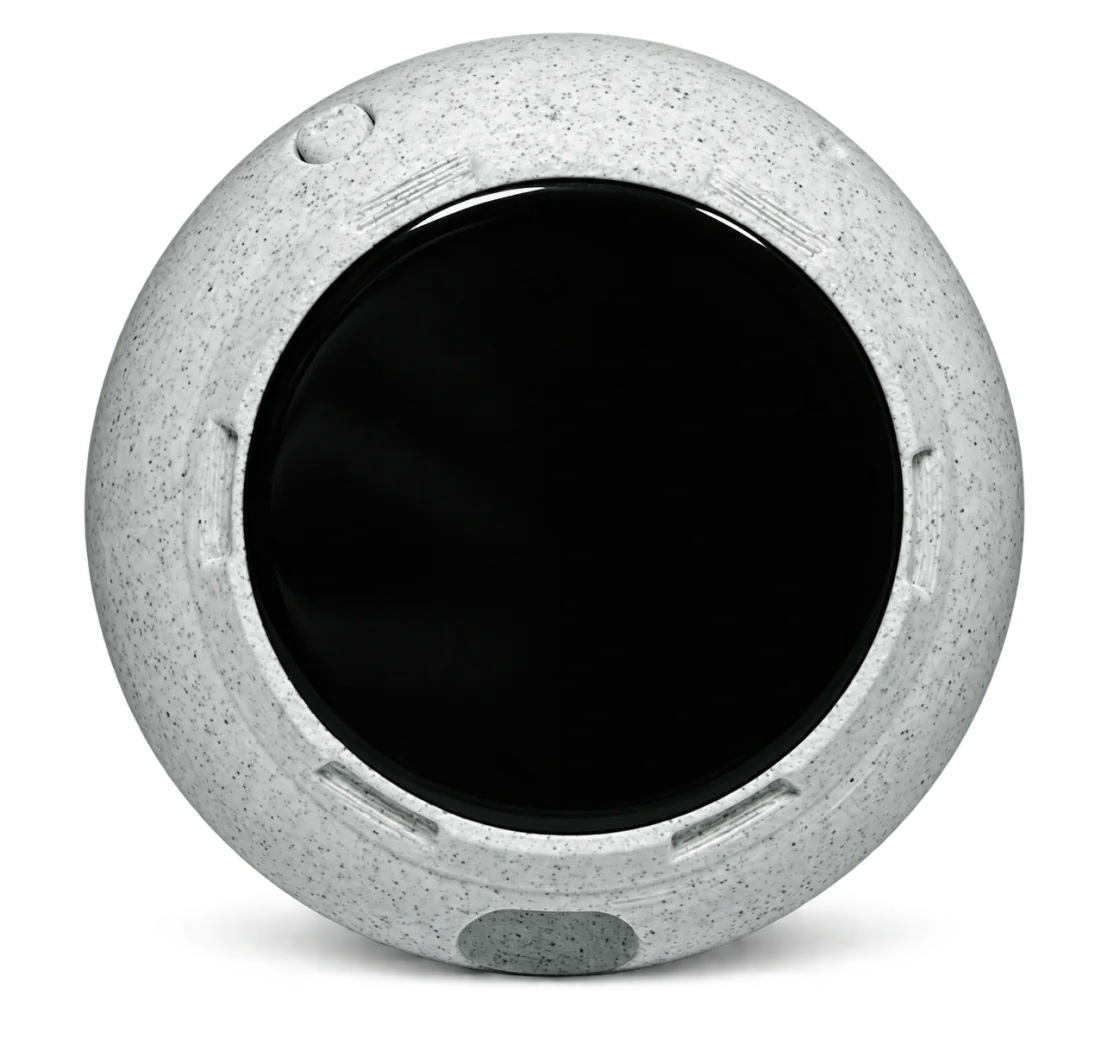
Give your Prusa printer a companion you can keep on the desk. PrintDeck connects to its local PrusaLink service so progress and temperatures stay visible without opening a browser.
 PrusaLinkLocal Wi-Fi
Prusa printer → PrusaLink → local Wi-Fi → PrintDeck
See printer state, the current job, progress and available time estimates, with reported nozzle and bed temperatures.
Sign in with the PrusaLink username and password, or use an API key when your PrusaLink setup supports it.
Enable PrusaLink for your printer and check that it opens from another device on the same network. Have its local address and the matching PrusaLink login or API key ready.
Follow Prusa’s instructions for your printer model. Copy the local address and connection credentials from your printer or PrusaLink setup.
In Web Config, open My Printers → Add printer → Other printers. Enter the address and select PrusaLink under Connection type.
Choose Username and password or API key to match your setup. Enter the details, then choose Check & add and select the online profile.
This connection uses PrusaLink on your local network. Enter the local PrusaLink address and credentials, rather than your Prusa Connect account details.
Available readings vary with the printer and PrusaLink version. PrintDeck displays the information supplied by the local connection.