Follow the whole print
See the current job, progress, elapsed and remaining time, and reported nozzle, bed and chamber temperatures.

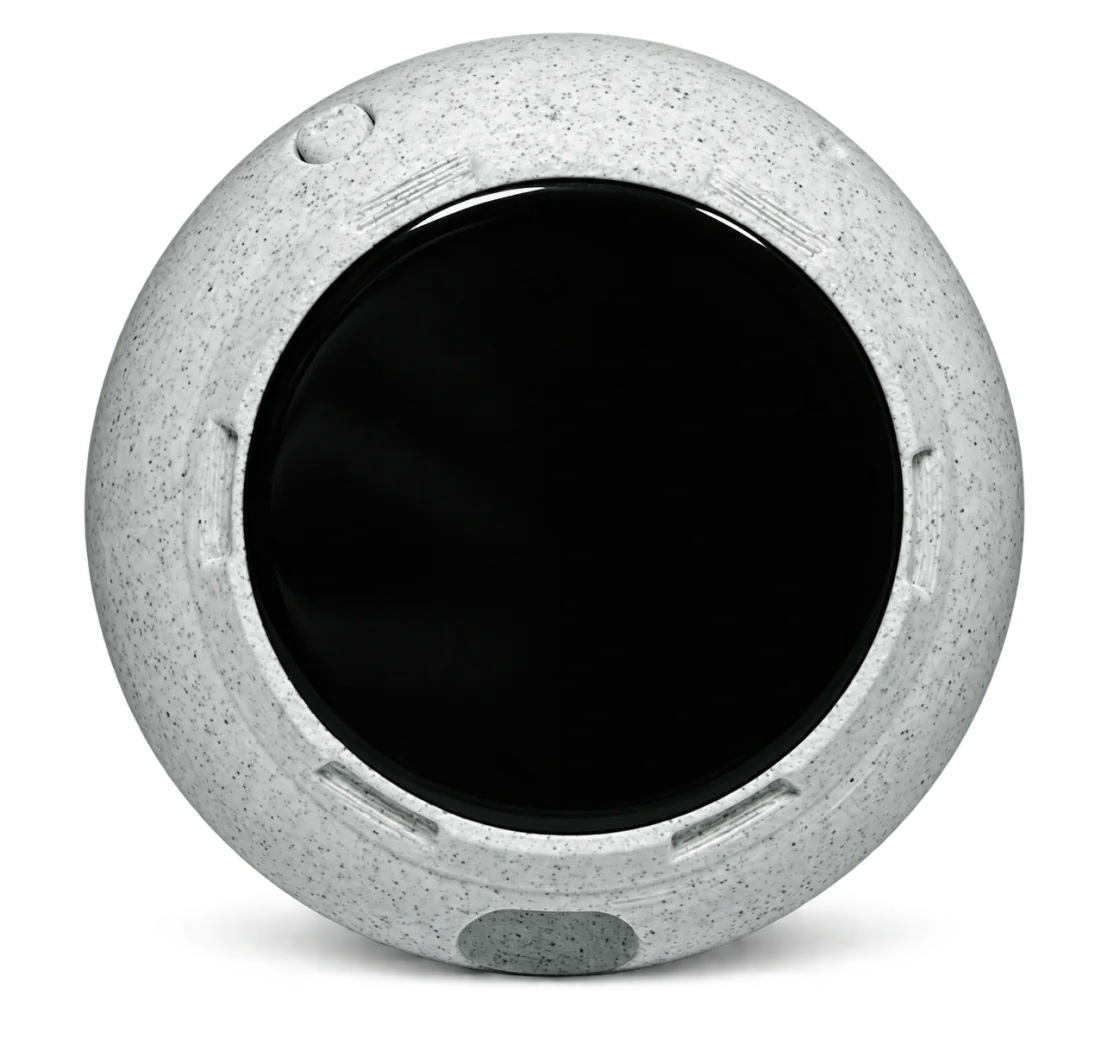
Keep your print progress beside you while your Bambu Lab printer works. PrintDeck brings job status, temperatures and useful printer details to a dedicated display on your local network.
 Bambu LabLocal Wi-Fi
Bambu Lab → local Wi-Fi → PrintDeck
See the current job, progress, elapsed and remaining time, and reported nozzle, bed and chamber temperatures.
Supported models can add a local camera snapshot, print cover and read-only AMS information. Available details depend on the printer and its firmware.
Have your printer’s local address, serial number and LAN access code ready. Keep the printer and PrintDeck on the same reachable local network.
Open the printer’s network settings and copy its address and serial number. Find the LAN access code there; the screen varies by model.
In PrintDeck Web Config, open My Printers → Add printer → Bambu Lab. Enter a name and the connection details.
Save the connection, then select the online printer. Use the compatibility report in Web Config if your model is missing information. Reports are not sent automatically.
No. Camera snapshots, print covers and AMS details depend on the model and the local data it provides. PrintDeck shows available readings and leaves missing values unavailable.
PrintDeck is designed for monitoring. Use your printer or its usual software to start, pause or stop a job.